
vCX WhatsApp Onboarding & Messaging
 Base URL - Administration
https://backend.admin.versalence.online/api/v2All protected endpoints require:
Authorization: Bearer <JWT_TOKEN>1. Authenticate the customer admin
The customer’s admin user logs in with their vCX credentials. The returned JWT is used for all subsequent calls.
POST /api/v2/login
Content-Type: application/json

{
  "email": "admin@customer.com",
  "password": "CustomerAdminPassword"
}
Response:
{
  "success": true,
  "message": "Sign-in successful",
  "token": "<JWT_TOKEN>"
}
Notes:
- The user must have
email_verified = 'yes'. - The account must be
active. - The JWT expiry is controlled by the server (
JWT_EXPIRES_IN). - The JWT contains the company
uuid. The backend uses this to identify which company to onboard.
2. Get Agency Customers
GET /api/admin/v2/getCustomers
Authorization: Bearer <agency-jwt>
Response:
{
  "success": true,
  "message": "Customers retrieved successfully.",
  "data": [
    {
      "uuid": "...",
      "company_name": "...",
      "company_email": "...",
      "company_id": "AGTSW000012026",
      "account_status": "active",
      "parent_agency_uuid": "...",
      "company_member_since": "...",
      "user_name": "...",
      "user_email": "...",
      "user_phone": "...",
      "user_role": "admin",
      "user_status": "active"
    }
  ]
}
3. Login to Sub Account using company_id
GET /api/admin/v2/clientAgentLogin?client_id=<SUB_ACCOUNT_COMPANY_ID>
Authorization: Bearer <agency-owner-jwt>
How it works
- The agency owner logs in via
/api/admin/v2/adminLoginto get their own JWT. - They call
/api/admin/v2/clientAgentLogin?client_id=<company_id>with that JWT. - The backend validates that the requested account is actually a sub-account under the agency.
- It returns a JWT for the sub-account’s first admin user.
Example
GET /api/admin/v2/clientAgentLogin?client_id=AGTSW000012026
Authorization: Bearer <agency-owner-jwt>
Response:
{
  "success": true,
  "message": "User successfully logged in.",
  "token": "<sub-account-jwt>"
}
Base URL - Backend
https://backend.versalence.onlineAll protected endpoints require:
Authorization: Bearer <JWT_TOKEN>4. Check WhatsApp integration status
Use this to decide whether the customer still needs to onboard WhatsApp.
GET https://backend.versalence.online/api/v2/getWaba
Authorization: Bearer <JWT_TOKEN>
Not integrated response:
{
  "success": true,
  "message": "no whatsapp data found"
}
Already integrated response:
{
  "success": true,
  "message": "whatsapp data found",
  "data": [
    {
      "app_id": "...",
      "waba_id": "...",
      "access_token": "[hidden]",
      "phone_id": "...",
      "phone_number": "919876543210",
      "display_phone_number": "+91 98765 43210",
      "onboarding_mode": "standard",
      "is_active": true,
      "webhook_subscription_status": "subscribed"
    }
  ]
}
5. Launch Meta Embedded Signup
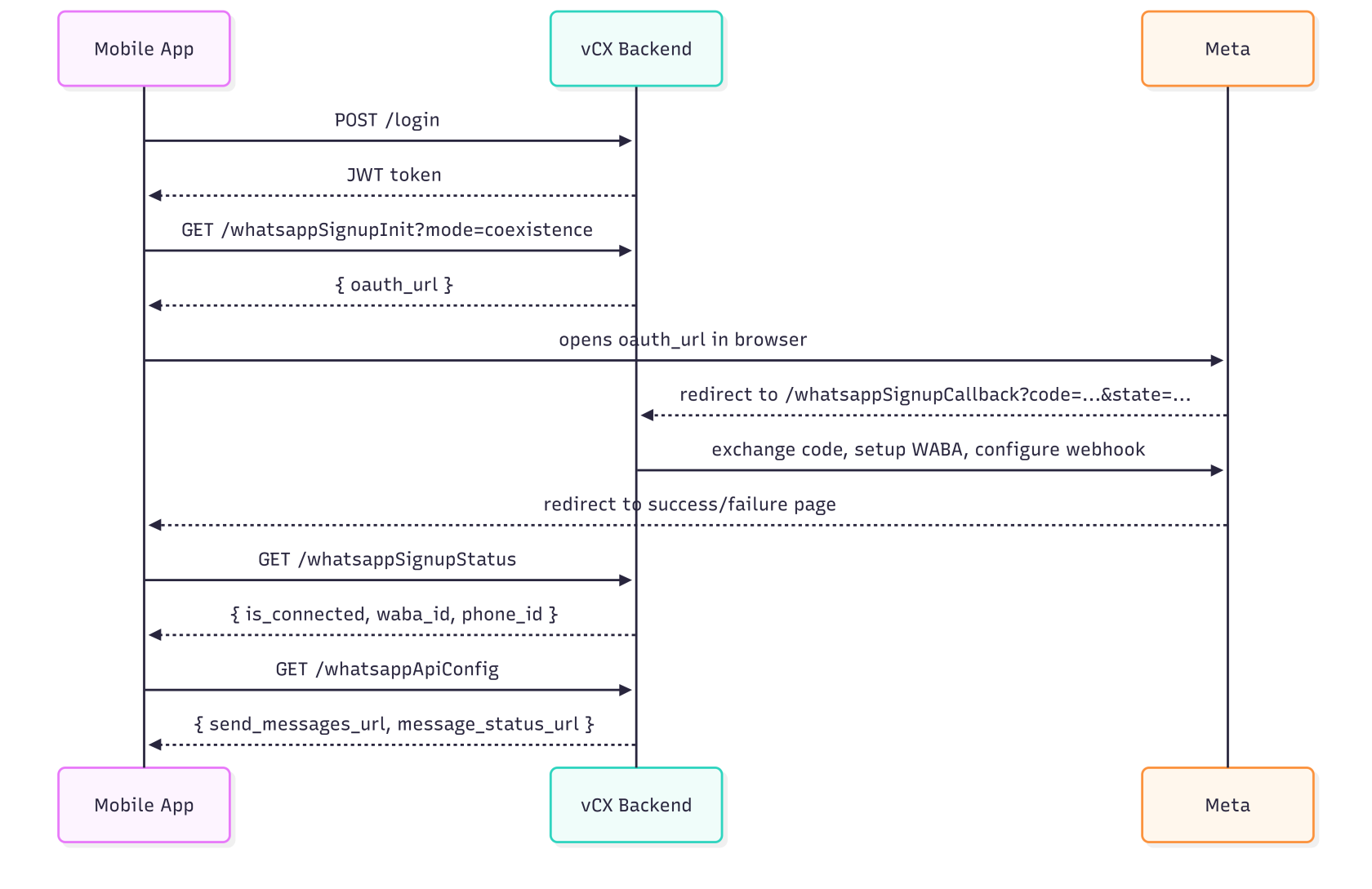
The mobile app never sees the Meta App ID. It asks the vCX backend for the OAuth URL, opens it in a browser, and polls for the result after Meta redirects back to vCX.
5a. Initiate WhatsApp Embedded Signup
GET https://backend.versalence.online/api/v2/whatsappSignupInit?mode=coexistence
Authorization: Bearer <vCX_JWT_TOKEN>
Query parameters:
| Parameter | Required | Values | Default | Description |
|---|---|---|---|---|
mode |
No | standard, coexistence |
standard |
WhatsApp onboarding mode. Use coexistence if the customer wants to keep their existing WhatsApp Business app running alongside vCX. |
Response:
{
  "success": true,
  "data": {
    "oauth_url": "https://www.facebook.com/v20.0/dialog/oauth?client_id=...&redirect_uri=...&scope=whatsapp_business_management&response_type=code&state=...",
    "state": "<STATE_TOKEN>",
    "redirect_uri": "https://backend.versalence.online/api/v2/whatsappSignupCallback",
    "scope": "whatsapp_business_management",
    "mode": "coexistence"
  }
}
Mobile app action: Open oauth_url in an in-app browser or WebView. Do not extract or store the Meta App ID.
5b. Meta OAuth callback
After the user completes Meta’s flow, Meta redirects the browser to the vCX backend. The mobile app does not call this endpoint directly.
GET https://backend.versalence.online/api/v2/whatsappSignupCallback?code=<META_AUTH_CODE>&state=<STATE_TOKEN>What the backend does:
- Exchanges the code for a Meta access token.
- Resolves the WABA ID and phone number.
- Registers the phone number.
- Configures the vCX webhook.
- Persists the account.
- For
coexistencemode, requestssmb_app_state_syncandhistorysync from Meta.
On success, the browser is redirected to:
https://backend.versalence.online/whatsapp-signup-successOn failure:
https://backend.versalence.online/whatsapp-signup-failure?error=<ERROR_MESSAGE>These redirect URLs are configurable via environment variables.
5c. Check WhatsApp signup status
The mobile app should poll this endpoint after the browser is redirected back.
GET /api/v2/whatsappSignupStatus
Authorization: Bearer <vCX_JWT_TOKEN>
Not connected response:
{
  "success": true,
  "message": "No WhatsApp account connected",
  "data": {
    "is_connected": false,
    "onboarding_mode": "standard"
  }
}
Connected response:
{
  "success": true,
  "message": "WhatsApp account connected",
  "data": {
    "is_connected": true,
    "onboarding_mode": "coexistence",
    "is_active": true,
    "waba_id": "...",
    "phone_id": "...",
    "phone_number": "919876543210",
    "display_phone_number": "+91 98765 43210",
    "webhook_subscription_status": "subscribed",
    "expires_in": "...",
    "last_message_at": null,
    "last_smb_message_echo_at": null,
    "last_history_at": null,
    "last_smb_app_state_sync_at": null
  }
}
This endpoint can be queried at any time in the future to check whether WhatsApp is still connected.
6. Get messaging API configuration
GET /api/v2/whatsappApiConfig
Authorization: Bearer <vCX_JWT_TOKEN>
Response:
{
  "success": true,
  "data": {
    "send_messages_url": "https://api.versal.one",
    "create_templates_url": "https://api.versal.one",
    "message_status_url": "https://apiproxy.versal.one"
  }
}
Use these endpoints (documented separately) to send messages, create templates, and check message delivery status.
7. Existing account lookup (backward-compatible)
GET /api/v2/getWaba
Authorization: Bearer <vCX_JWT_TOKEN>>
This existing endpoint continues to work and returns the connected WhatsApp account data. The mobile app may use either /getWaba or /whatsappSignupStatus.
Onboarding modes
Standard mode
GET /api/v2/whatsappSignupInit?mode=standard- Uses the Meta Cloud API onboarding.
- The customer’s WhatsApp Business app will be replaced by vCX for business messaging.Coexistence mode
GET /api/v2/whatsappSignupInit?mode=coexistence- The customer’s existing WhatsApp Business app continues to work.
- vCX receives messages through webhooks while the customer keeps using their native WhatsApp Business app.
- The backend requests
smb_app_state_syncandhistorysync from Meta during onboarding.
Environment variables
Add these to the vCX backend .env:
# Backend-driven OAuth signup flow for external mobile apps.
# WHATSAPP_OAUTH_REDIRECT_URI must be registered in the Meta app settings.
WHATSAPP_OAUTH_REDIRECT_URI=https://backend.versalence.online/api/v2/whatsappSignupCallback
WHATSAPP_OAUTH_SUCCESS_REDIRECT=https://backend.versalence.online/whatsapp-signup-success
WHATSAPP_OAUTH_FAILURE_REDIRECT=https://backend.versalence.online/whatsapp-signup-failure

# External WhatsApp messaging API endpoints exposed to mobile apps.
WHATSAPP_SEND_MESSAGES_URL=https://api.versal.one
WHATSAPP_CREATE_TEMPLATES_URL=https://api.versal.one
WHATSAPP_MESSAGE_STATUS_URL=https://apiproxy.versal.one
The following existing variables are also used:
APP_ID=
APP_SECRET=
META_API_VERSION=
Prerequisites
- The customer account must already exist in vCX (created as a sub-account under the partner’s master account).
- The customer must have an admin user with verified email and active account status.
- The
WHATSAPP_OAUTH_REDIRECT_URImust be registered in the Meta app settings. - Migration
009_add_whatsapp_coexistence_support.sqlmust be applied to production. It creates theonboarding_sessionsandwhatsapp_accountstables required by the new flow.
Coexistence with the existing web dashboard flow
The existing web dashboard flow is unchanged and continues to work:
POST /v2/whatsappSignPOST /v2/whatsappWabaPOST /v2/whatsappPhonePOST /v2/embeddedSignupGET /v2/getWabaGET /v2/whatsapp-coexistence/status
The new mobile-app flow is additive:
- GET /v2/whatsappSignupInit
GET /v2/whatsappSignupCallbackGET /v2/whatsappSignupStatusGET /v2/whatsappApiConfig
The removed /v2/whatsapp-coexistence/enable and /v2/whatsapp-coexistence/disable endpoints are no longer needed because the mode is passed directly at signup time.
Error handling
| Step | Typical failure | How the mobile app should handle |
|---|---|---|
| Login | Invalid credentials | Show error and ask user to retry. |
| Initiate signup | Missing APP_ID / redirect URI |
Backend misconfiguration. Contact vCX support. |
| Meta OAuth | User cancels | Browser redirects to failure page. Poll /whatsappSignupStatus to confirm not connected. |
| Callback | Invalid/expired state |
Browser redirects to failure page with error=Invalid or expired onboarding session. |
| Callback | Missing WABA or phone number | Browser redirects to failure page. User must retry signup. |
| Status polling | is_connected: false |
Continue polling or restart signup. |
Summary of API endpoints
| Endpoint | Method | Auth | Purpose |
|---|---|---|---|
/api/v2/login |
POST | Public | Authenticate and get JWT. |
/api/admin/v2/adminLogin |
POST | Public | Agency owner login. |
/api/admin/v2/getCustomers |
GET | Agency JWT | List sub-accounts. |
/api/admin/v2/clientAgentLogin |
GET | Agency JWT | Get sub-account JWT. |
/api/v2/getWaba |
GET | Any JWT | Check WhatsApp account. |
/api/v2/whatsappSignupInit |
GET | Admin JWT | Get Meta OAuth URL. |
/api/v2/whatsappSignupCallback |
GET | None (Meta calls this) | Complete signup after Meta OAuth. |
/api/v2/whatsappSignupStatus |
GET | Any JWT | Check if WhatsApp is connected. |
/api/v2/whatsappApiConfig |
GET | Any JWT | Get messaging API URLs. |
Appendix: Web dashboard 3-step flow
The following endpoints are used by the existing vCX web dashboard. They remain available but are not used by the mobile-app OAuth flow described above.
A1. Exchange code for access token
POST /api/v2/whatsappSign
Authorization: Bearer <JWT_TOKEN>
Content-Type: application/json

{
  "code": "<META_AUTH_CODE>",
  "mode": "coexistence"
}
Response:
{
  "success": true,
  "message": "Access token updated successfully",
  "session_id": "<SESSION_ID>",
  "mode": "coexistence",
  "data": "<ACCESS_TOKEN>"
}
Save session_id and discard data (legacy field).
A2. Resolve WABA ID
POST /api/v2/whatsappWaba
Authorization: Bearer <JWT_TOKEN>
Content-Type: application/json

{
  "session_id": "<SESSION_ID>"
}
Response:
{
  "success": true,
  "message": "WABA ID updated successfully",
  "data": {
    "waba_id": "<WABA_ID>"
  },
  "session_id": "<SESSION_ID>"
}
A3. Resolve phone number and complete signup
POST /api/v2/whatsappPhone
Authorization: Bearer <JWT_TOKEN>
Content-Type: application/json

{
  "session_id": "<SESSION_ID>"
}
Response:
{
  "success": true,
  "message": "Whatsapp embedded signup complete with co-existence mode",
  "mode": "coexistence",
  "phone_number": "919876543210",
  "phone_id": "<PHONE_ID>",
  "webhook_config": "Webhook configured successfully"
}
Role requirement: Admin only for all three steps.
Send messages via vCX
Once onboarding is complete, use the separately documented messaging API to send WhatsApp messages through the vCX platform.
The backend stores the access token and phone ID, so the send-message API only needs the vCX customer JWT (and the recipient/message payload).
Important notes
- Legacy endpoint
POST /api/v2/embeddedSignupexists as a single-call onboarding flow, but it always usesstandardmode and does not support Coexistence. Use the 3-step flow in the appendix for Coexistence via the dashboard. - Token storage: The 3-step flow uses
session_idto keep the Meta access token server-side. The mobile-app OAuth flow keeps the token entirely server-side. - No login to vCX web UI required: The mobile app can perform the entire flow via the API calls above.