Refer [https://developers.facebook.com/docs/whatsapp/embedded-signup/](https://developers.facebook.com/docs/whatsapp/embedded-signup/) for details
[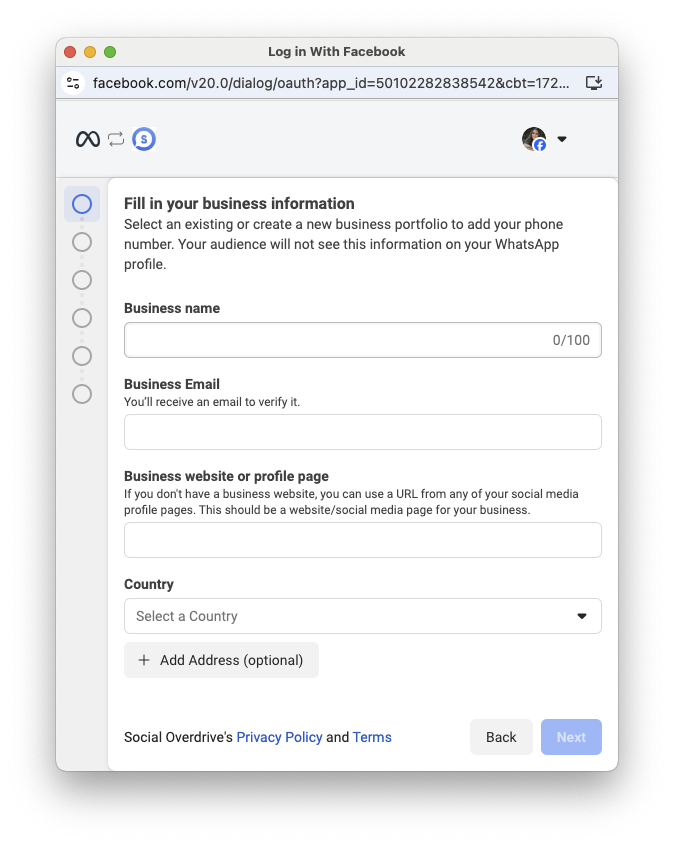](https://docs.versalence.online/uploads/images/gallery/2025-02/EBNsdoacGjaychkQ-image.png)[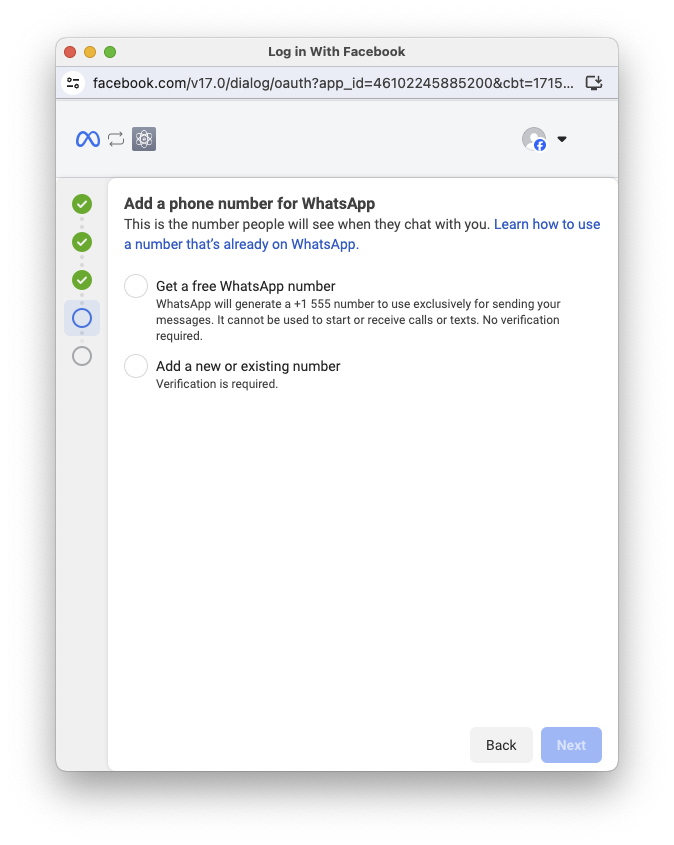](https://docs.versalence.online/uploads/images/gallery/2025-02/NmclfG75bZTAw29b-image.png) [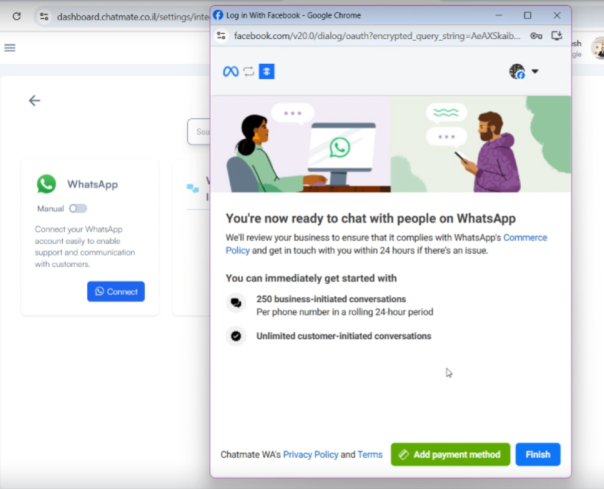](https://docs.versalence.online/uploads/images/gallery/2025-02/jeQBoXQ48IQGYPy7-image.png) Once your App verification is complete and you receive the verified tech provider badge, lets us move to build the Embedded Signup [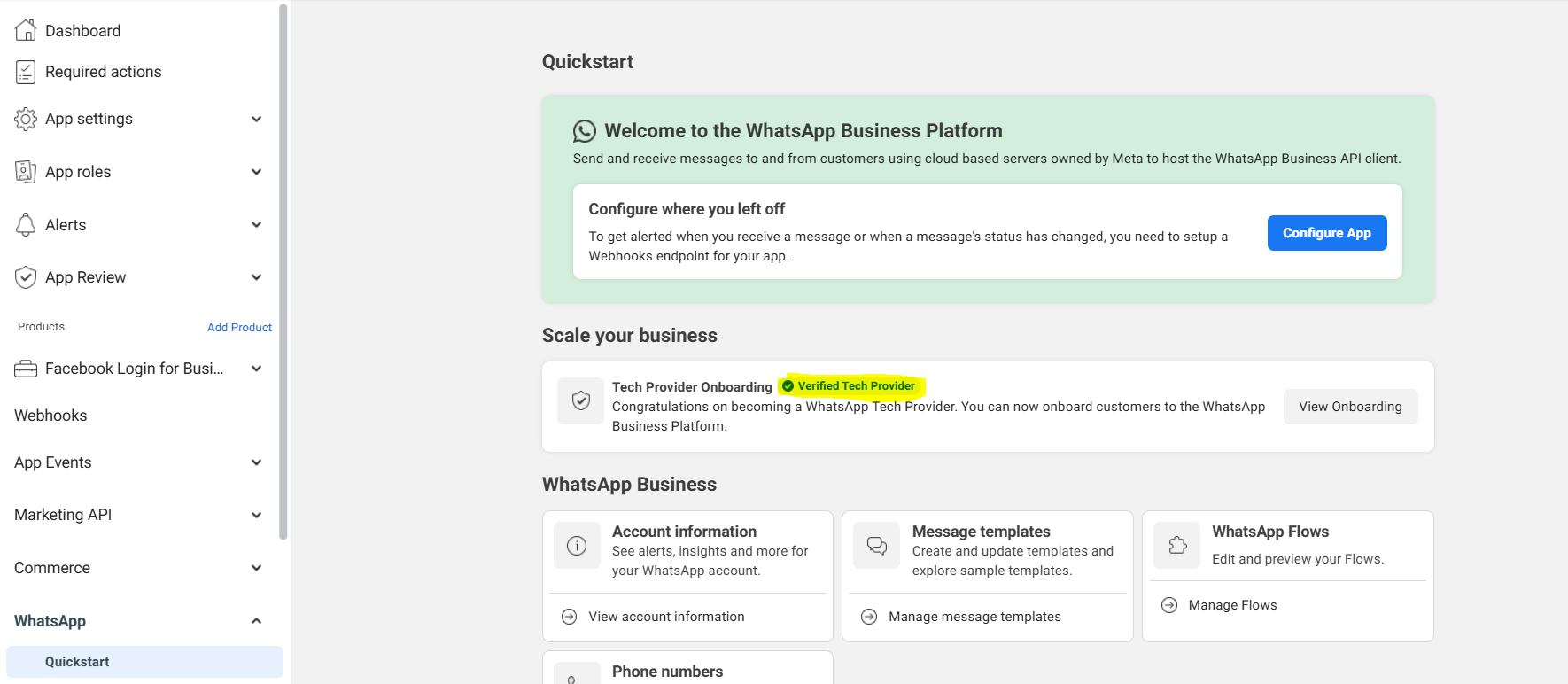](https://docs.versalence.online/uploads/images/gallery/2025-02/C62uwaBFbPCtOgZn-image.png) Ensure you have Facebook Login for Business enabled in your app, if not click on Dashboard and enable it [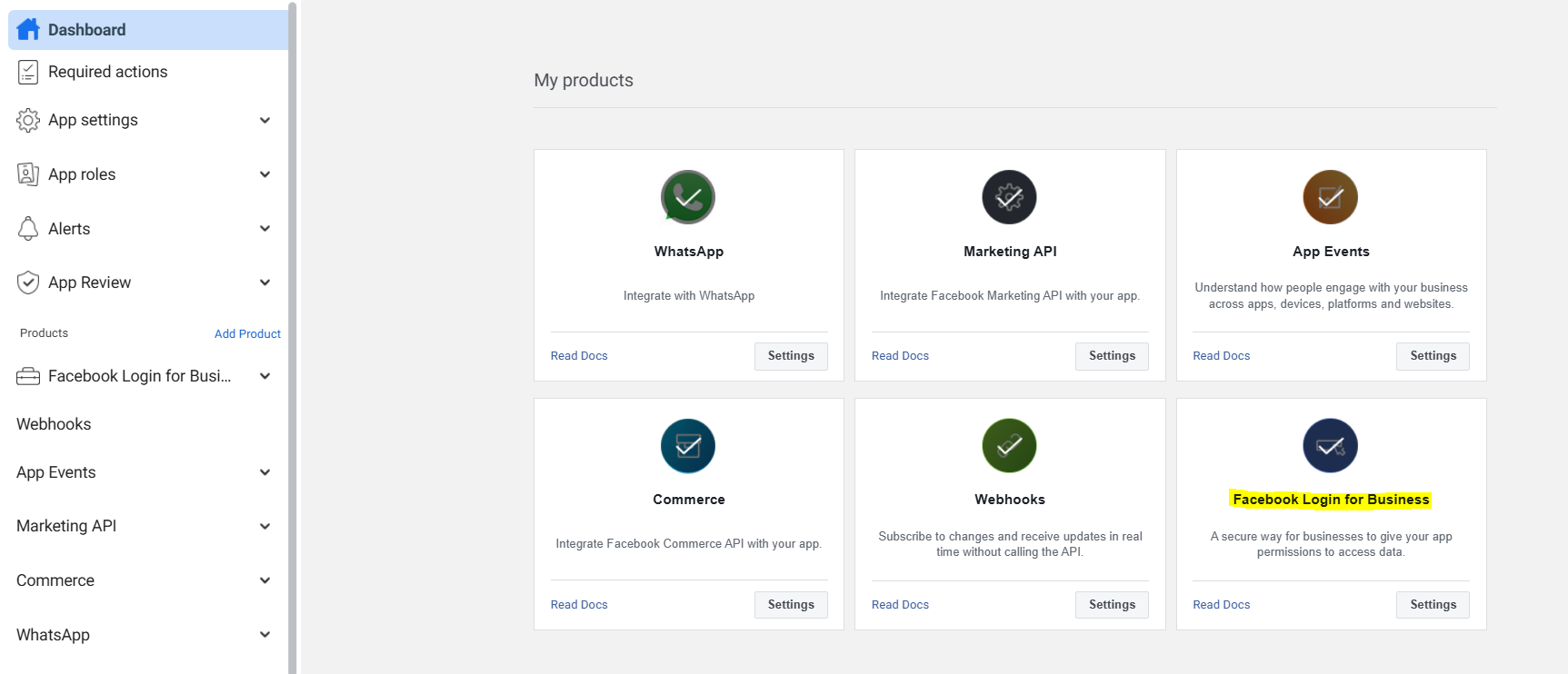](https://docs.versalence.online/uploads/images/gallery/2025-02/nQ962i0EvjiPtrMJ-image.png) Head to Facebook Login for Business and select Configurations -> Create configuration [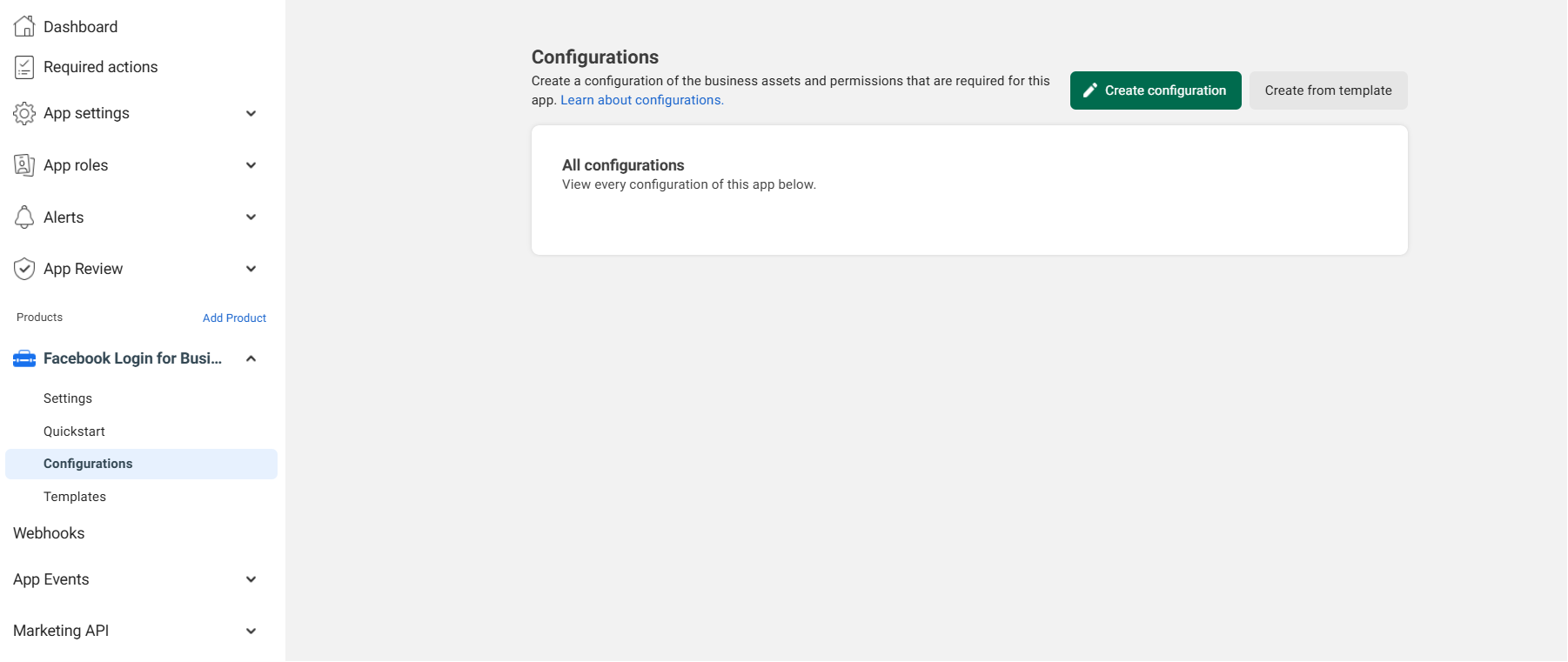](https://docs.versalence.online/uploads/images/gallery/2025-02/xlIym8KUwvwceTxf-image.png) Add a Name to the configuration [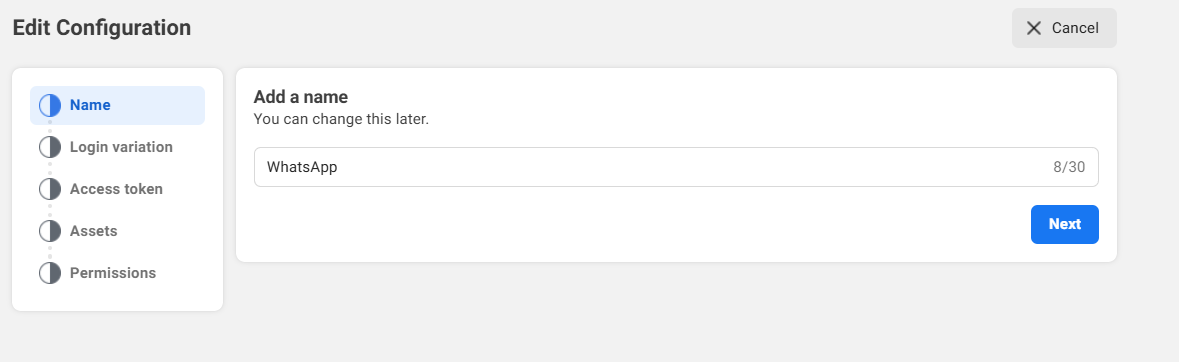](https://docs.versalence.online/uploads/images/gallery/2025-02/rHAIZyjnwPHVYz8E-image.png) Select Login variation as WhatsApp Embedded Signup [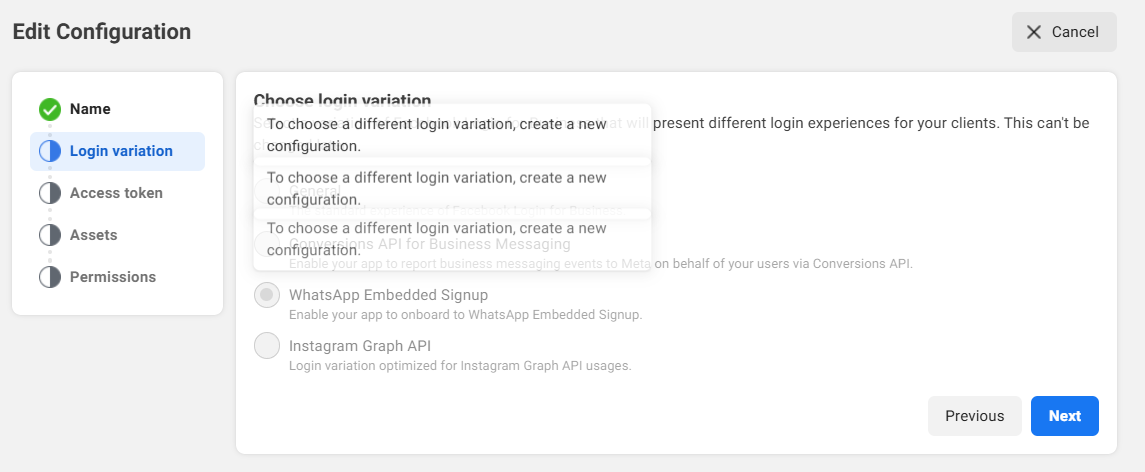](https://docs.versalence.online/uploads/images/gallery/2025-02/8eCiqhfSmzSjuJzh-image.png) Select System-user Access Token & Never Expire [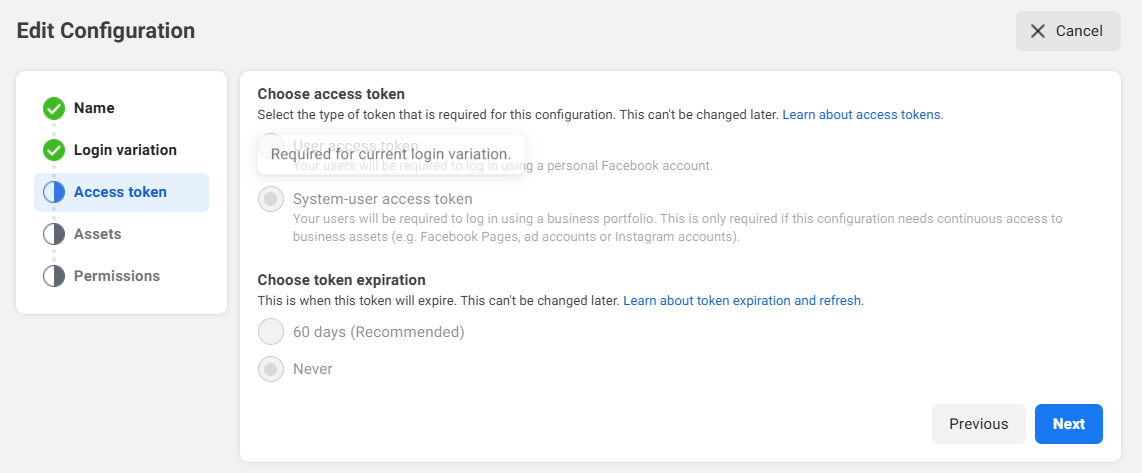](https://docs.versalence.online/uploads/images/gallery/2025-02/QRdoT8v0nXFTfUl5-image.png) Select WhatsApp Accounts and Select all Asset Task Permissions [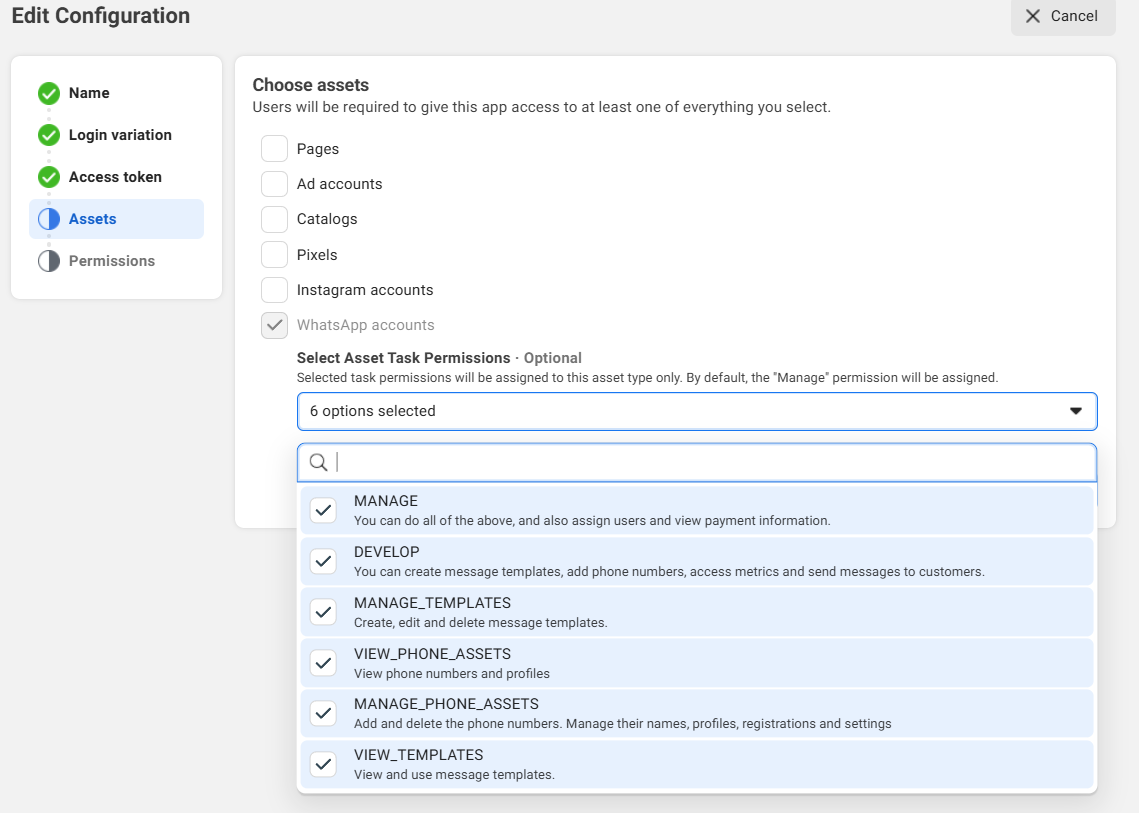](https://docs.versalence.online/uploads/images/gallery/2025-02/CLxOZSGmLGdAJ3xh-image.png) From Permssions select business\_management, catalog\_management, whataspp\_business\_management & whatsapp\_business\_messaggng [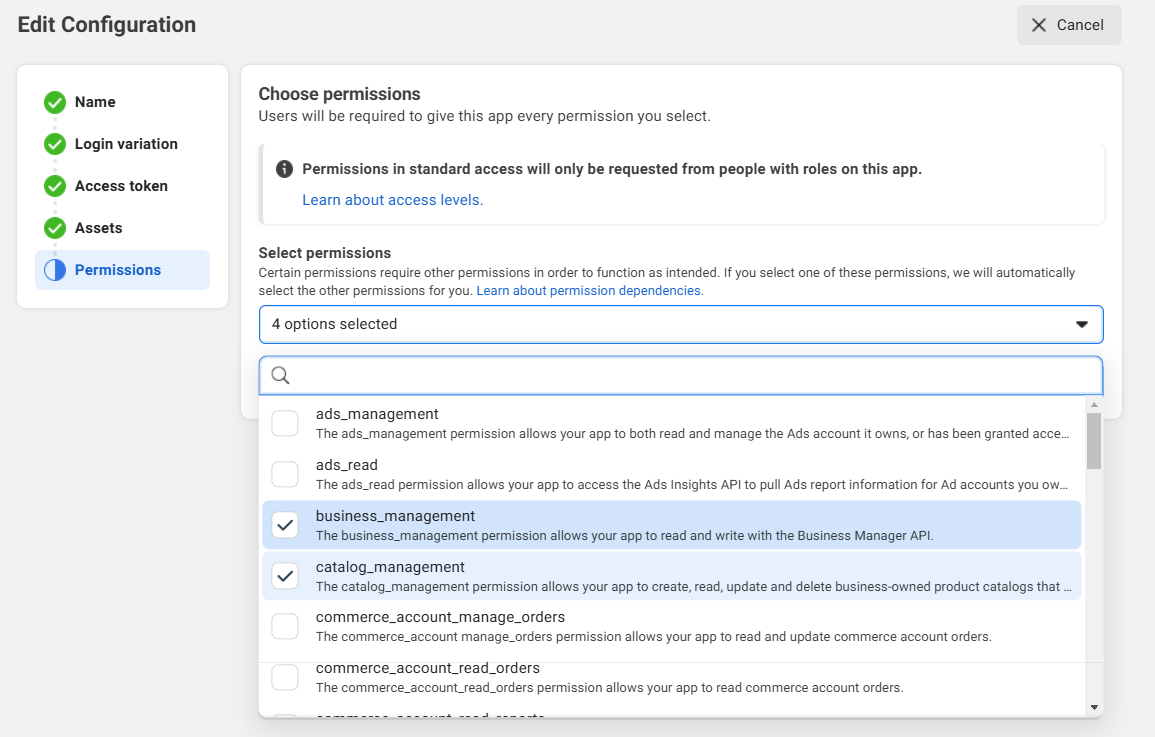](https://docs.versalence.online/uploads/images/gallery/2025-02/OdCFa0PtaWpE4LBj-image.png) click Save to save the configuration [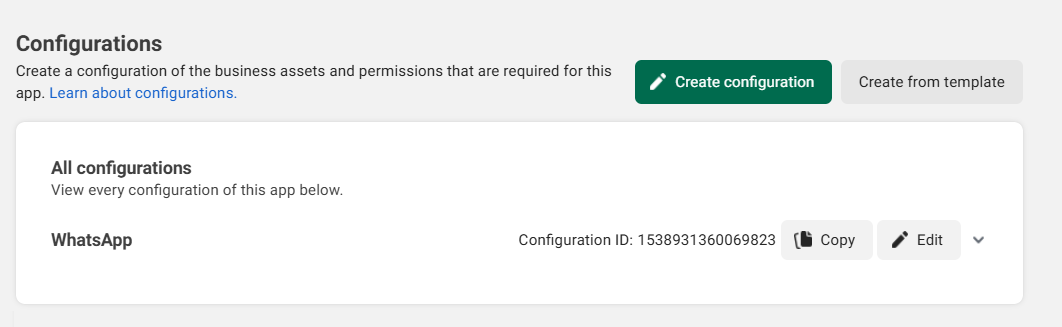](https://docs.versalence.online/uploads/images/gallery/2025-02/tc3kFhGwusTczspV-image.png) To whitelist the domains, head to settings and add the domains and ensure to enable Client OAuth Login, Web OAuth Login, Embedded Browser OAuth Login [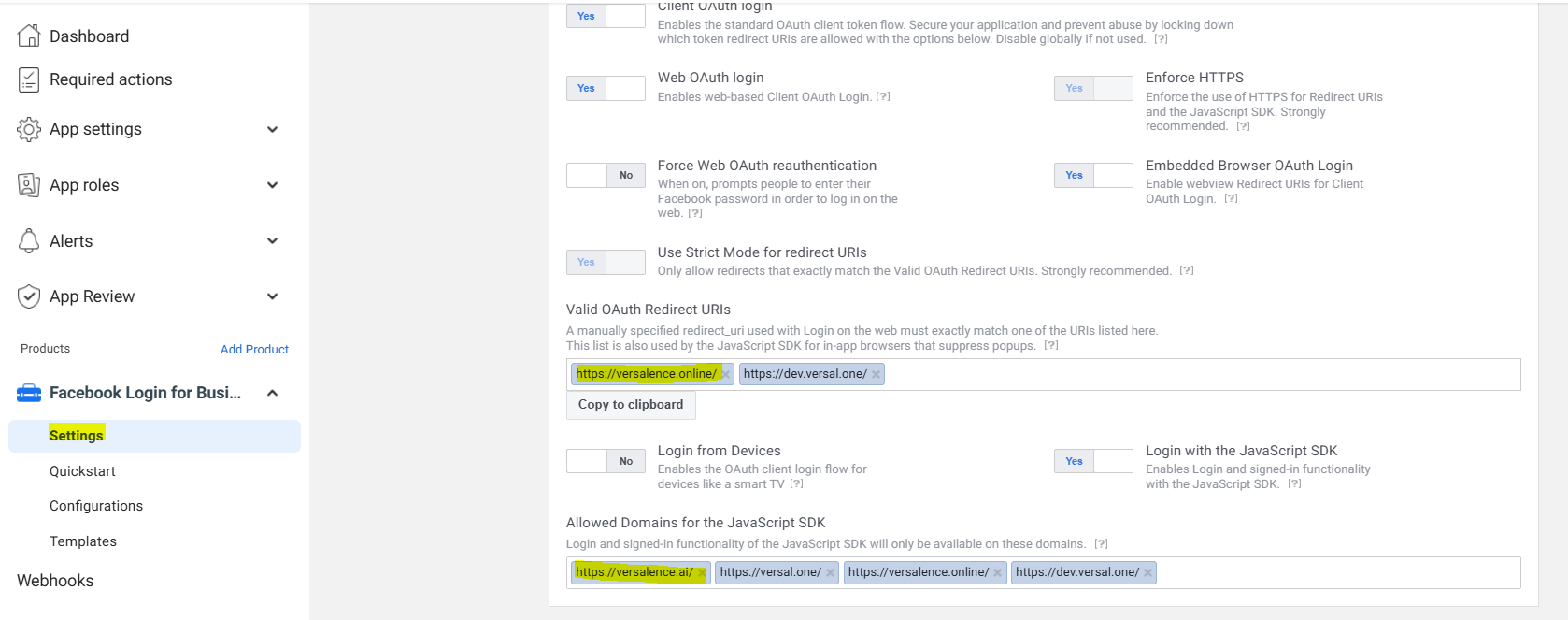](https://docs.versalence.online/uploads/images/gallery/2025-02/1YbvL824mFXNgoWD-image.png) Finally to embed the code you will need - Configuration ID - App ID - App Secret Configuration ID from the screen above. App ID and App secret from the screen below [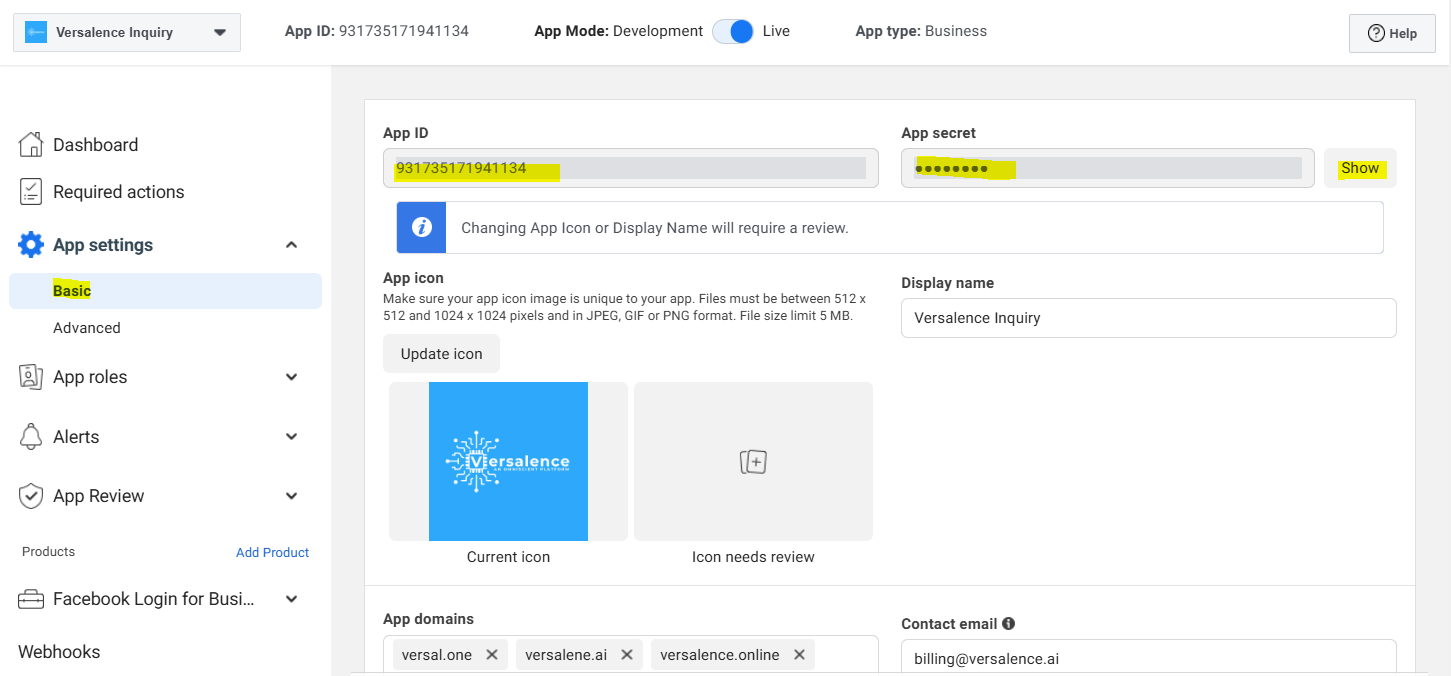](https://docs.versalence.online/uploads/images/gallery/2025-02/UfZNdsGw3M5Ok2Bn-image.png) --- --- # Onboarding business customers as a Tech Provider or Tech Partner This document describes the steps Tech Providers and Tech Partners must perform to onboard new business customers who have completed the Embedded Signup flow. If you are a Tech Provider or Tech Partner, any business customer who completes your implementantation of the Embedded Signup flow will not be able to use your app to access their WhatsApp assets or send and receive messages (if you are offering messaging services) until you complete these steps. ## What you will need'
```
### Request parameters
Placeholder Description Example value ``
**Required.**
Your app ID. This is displayed at the top of the **App Dashboard**.
`236484624622562`
``
**Required.**
Your app secret. You can get this from the **App Dashboard** > **App Secret** > **Basic** panel.
`614fc2afde15eee07a26b2fe3eaee9b9`
``
**Required.**
The code [returned by Embedded Signup](https://developers.facebook.com/docs/whatsapp/embedded-signup/implementation#session-logging-message-event-listener) when the customer successfully completed the flow.
`AQBhlXsctMxJYbwbrpybxlo9tLPGy-QAmjBJA03jxLos43wxlBlrYozY5C33BXJULd133cOJf_5y6EkJZYMrAmW-EMj3Wdap9-NUM2nS4s8tC-ES7slBhh6QpCFM7-SzpI-iqsjqTGyxbUUW3AeaEyLkeZFIkBgcQ_SOxo9HShm20SDR5_n7AT9ZJ5dcgpqBQykNT-pQ8V7Ne9-sr6RLAWtJMF7-Zx6ABudRcWIN53tUTtquDVNuq3lrco4BlVQAv-54tR83Ae0ODN9Uet6j-BVLuetXhQCM3sz9RdgedlbxkidMbkztvYX1j7baOrJxyLyYGWYgbnUrKRQKCtWTsO5ekIGFgtbpS8UPJNqV6j8E5XKPJ8QA7ZFqzkB0s2O__J5FrjHzc_rDo1EuRbw98ihHDzQnvuXeHapEyfhLDJct0A`
### Response
Upon success:
```
```
### Response parameters
Placeholder Description Example value ``
The customer's [business token](https://developers.facebook.com/docs/whatsapp/business-management-api/get-started#business-integration-system-user-access-tokens).
`EAAAN6tcBzAUBOwtDtTfmZCJ9n3FHpSDcDTH86ekf89XnnMZAtaitMUysPDE7LES3CXkA4MmbKCghdQeU1boHr0QZA05SShiILcoUy7ZAb2GE7hrUEpYHKLDuP2sYZCURkZCHGEvEGjScGLHzC4KDm8tq2slt4BsOQE1HHX8DzHahdT51MRDqBw0YaeZByrVFZkVAoVTxXUtuKgDDdrmJQXMnI4jqJYetsZCP1efj5ygGscZBm4OvvuCYB039ZAFlyNn`
## Step 2: Subscribe to webhooks on the customer's WABA
Use the [POST /<WABA\_ID>/subscribed\_apps](https://developers.facebook.com/docs/graph-api/reference/whats-app-business-account/subscribed_apps/#Creating) endpoint to subscribe your app to webhooks on the business customer's WABA. If you want the customer's webhooks to be sent to a different callback URL than the one set on your app, you have multiple [webhook override](https://developers.facebook.com/docs/whatsapp/embedded-signup/webhooks/override) options.
### Request
```
curl -X POST 'https://graph.facebook.com///subscribed_apps' \
-H 'Authorization: Bearer '
```
### Request parameters
Placeholder Description Example value ``
**Required.**
The customer's[ business token](https://developers.facebook.com/docs/whatsapp/business-management-api/get-started#business-integration-system-user-access-tokens).
`EAAAN6tcBzAUBOwtDtTfmZCJ9n3FHpSDcDTH86ekf89XnnMZAtaitMUysPDE7LES3CXkA4MmbKCghdQeU1boHr0QZA05SShiILcoUy7ZAb2GE7hrUEpYHKLDuP2sYZCURkZCHGEvEGjScGLHzC4KDm8tq2slt4BsOQE1HHX8DzHahdT51MRDqBw0YaeZByrVFZkVAoVTxXUtuKgDDdrmJQXMnI4jqJYetsZCP1efj5ygGscZBm4OvvuCYB039ZAFlyNn`
``
**Required.**
The customer's WABA ID.
`102290129340398`
### Response
Upon success:
```
{
"success": true
}
```
## Step 3: Register the customer's phone number
Use the [POST /<BUSINESS\_PHONE\_NUMBER\_ID>/register](https://developers.facebook.com/docs/whatsapp/cloud-api/reference/registration#register) endpoint to register the customer's business phone number for use with Cloud API.
### Request
```
curl 'https://graph.facebook.com/v21.0//register' \
-H 'Content-Type: application/json' \
-H 'Authorization: Bearer ' \
-d '
{
"messaging_product": "whatsapp",
"pin": ""
}'
```
### Request parameters
Placeholder Description Example value ``
**Required.**
The customer's business phone number ID returned.
`106540352242922`
``
**Required.**
The customer's business token.
`EAAAN6tcBzAUBOwtDtTfmZCJ9n3FHpSDcDTH86ekf89XnnMZAtaitMUysPDE7LES3CXkA4MmbKCghdQeU1boHr0QZA05SShiILcoUy7ZAb2GE7hrUEpYHKLDuP2sYZCURkZCHGEvEGjScGLHzC4KDm8tq2slt4BsOQE1HHX8DzHahdT51MRDqBw0YaeZByrVFZkVAoVTxXUtuKgDDdrmJQXMnI4jqJYetsZCP1efj5ygGscZBm4OvvuCYB039ZAFlyNn`
``
**Required.**
Set this value to a 6-digit number. This will be the business phone number's two-step verification PIN.
`581063`
### Response
Upon success:
```
{
"success": true
}
```
## Step 4: Send a test message
*This step is optional.*
If you wish to test the messaging capabilities of your business customer's business phone number, send a message to the customer's number from your own WhatsApp number (this will open a [customer service window](https://developers.facebook.com/docs/whatsapp/cloud-api/guides/send-messages#customer-service-windows), allowing you to respond with any type of message).
Next, use the [POST /<BUSINESS\_PHONE\_NUMBER\_ID>/messages](https://developers.facebook.com/docs/whatsapp/cloud-api/reference/messages) endpoint to send a [text message](https://developers.facebook.com/docs/whatsapp/cloud-api/messages/text-messages) in response.
### Request
```
curl 'https://graph.facebook.com/v21.0//messages' \
-H 'Content-Type: application/json' \
-H 'Authorization: Bearer ' \
-d '
{
"messaging_product": "whatsapp",
"recipient_type": "individual",
"to": "",
"type": "text",
"text": {
"body": ""
}
}'
```
### Request parameters
Placeholder Description Example value ``
**Required.**
Message body text. Supports URLs.
Maximum 4096 characters.
`Message received, loud and clear!`
``
**Required.**
The customer's business phone number ID.
`106540352242922`
``
**Reqiured.**
The customer's business token.
`EAAAN6tcBzAUBOwtDtTfmZCJ9n3FHpSDcDTH86ekf89XnnMZAtaitMUysPDE7LES3CXkA4MmbKCghdQeU1boHr0QZA05SShiILcoUy7ZAb2GE7hrUEpYHKLDuP2sYZCURkZCHGEvEGjScGLHzC4KDm8tq2slt4BsOQE1HHX8DzHahdT51MRDqBw0YaeZByrVFZkVAoVTxXUtuKgDDdrmJQXMnI4jqJYetsZCP1efj5ygGscZBm4OvvuCYB039ZAFlyNn`
``
**Required.**
Your WhatsApp phone number that can send and receive messages from other WhatsApp numbers.
Note that this cannot be a business phone number already registered for use with Cloud API or On-Premises API.
`+16505551234`
### Response
Upon success:
```
{
"messaging_product": "whatsapp",
"contacts": [
{
"input": "",
"wa_id": ""
}
],
"messages": [
{
"id": ""
}
]
}
```
### Response parameters
Placeholder Description Example value ``
WhatsApp message ID.
`wamid.HBgLMTY0NjcwNDM1OTUVAgARGBI1RjQyNUE3NEYxMzAzMzQ5MkEA`
``
Your WhatsApp user ID.
`16505551234`
``
Your WhatsApp phone number that the message was sent to.
`+16505551234`
If you were able to successfully send and receive messages using the customer's business phone number, and if **messages** webhooks were triggered [describing the initial message that you sent](https://developers.facebook.com/docs/whatsapp/cloud-api/webhooks/payload-examples#received-messages), as well as the [delivery statuses](https://developers.facebook.com/docs/whatsapp/cloud-api/webhooks/payload-examples#message-status-updates) of the message you sent in response, the customer's business phone number is working properly.
## Step 5: Instruct the customer to add a payment method
Instruct your customer to use the WhatsApp Manager to add a payment method. You can provide them with the following Help Center link:
[https://www.facebook.com/business/help/488291839463771](https://www.facebook.com/business/help/488291839463771)
Alternatively, you can instruct them to:
1. Access the **WhatsApp Manager** > **Overview** panel at [https://business.facebook.com/wa/manage/home/](https://business.facebook.com/wa/manage/home/)
2. Click the **Add payment method** button
3. Complete the flow
Once your customer adds a payment method, they are fully onboarded onto the WhatsApp Business Platform and can begin using your app to access their WhatsApp assets and send and receive messages (if you are providing them with that service).