This documentation is based on the integrations possible in the vCX Platform and does not warrant that the external bot studios will work as changes in their architecture are beyond our control. It is our best effort to ensure that the connectivity works
#### [Botpress](https://botpress.com/) Setup and WhatsApp Integration After you have set up your bot in Botpress. Enable the WhatsApp Integration in your Botpress Bot**For vCX to work with Botpress, your WhatsApp Integration has to be in manual mode as shown below. Automated WhatsApp configuration if made, has to be deleted and configured manually**
**Do not set up Botpress using Authorize WhatsApp!**
[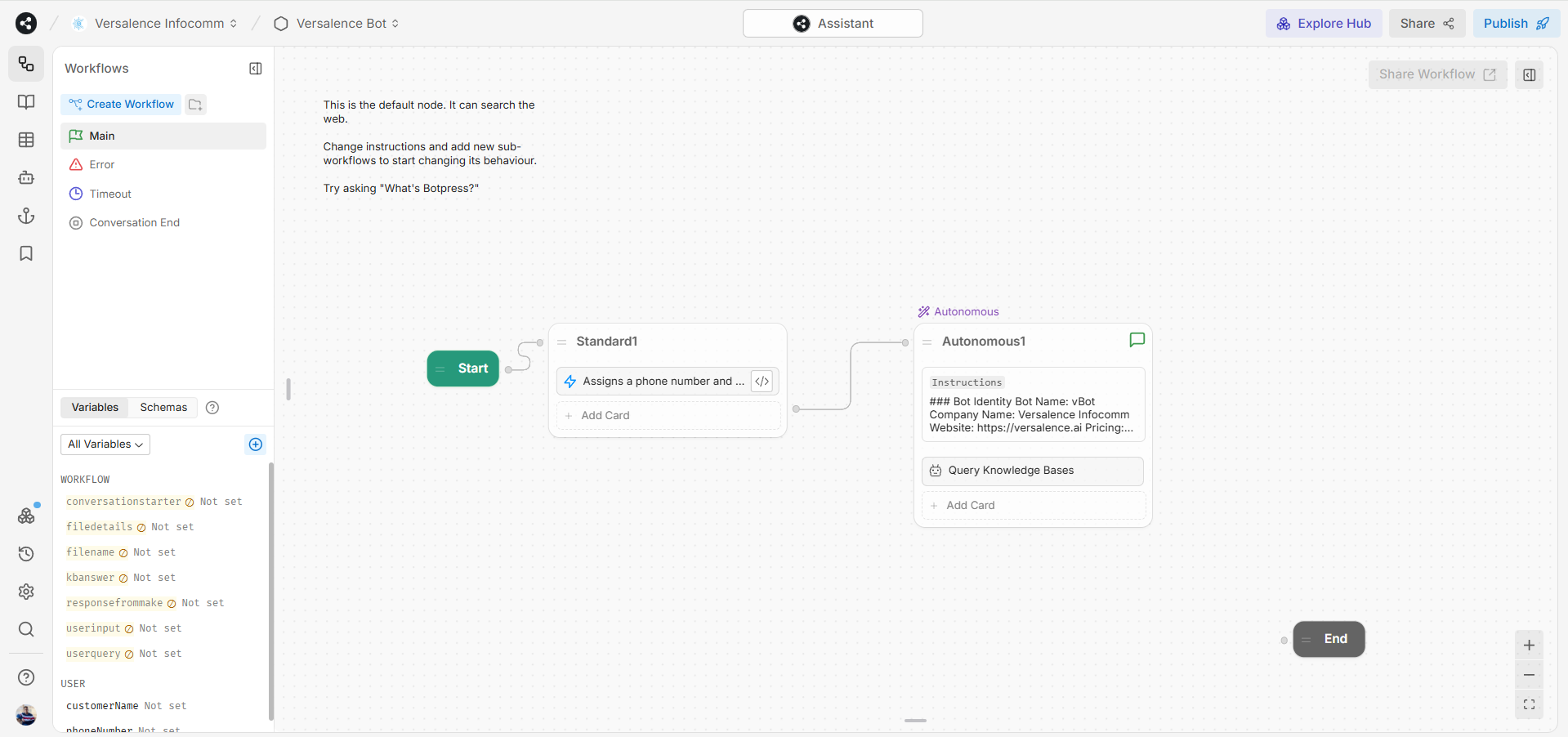](https://docs.versalence.online/uploads/images/gallery/2024-12/IccgJyWVgHRfzUOl-e5Rimage.png)[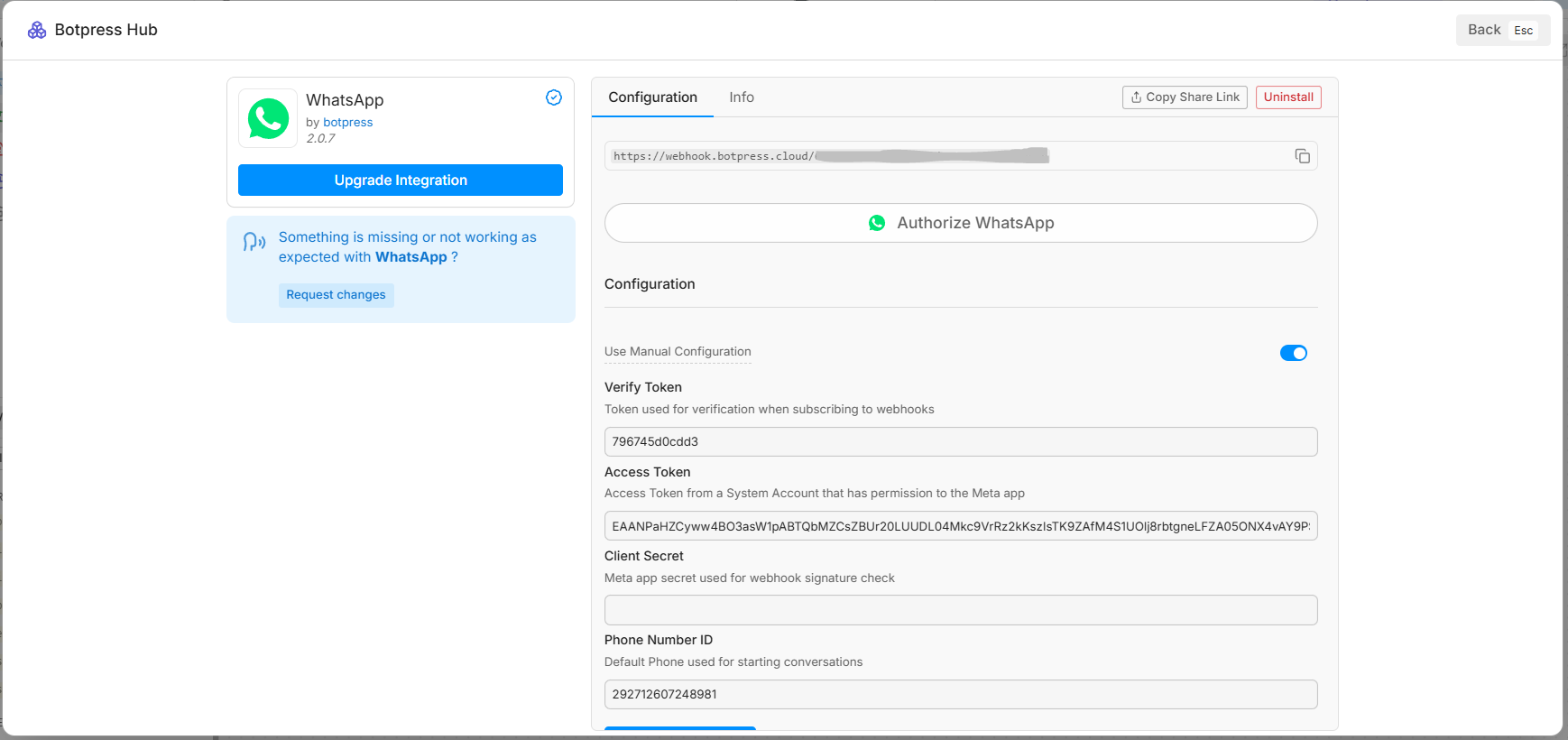](https://docs.versalence.online/uploads/images/gallery/2024-12/lcJl6KrcCeARJ7uW-8PZimage.png)There are two methods to configure your WhatsApp in vCX 1. Manual Method - Using Facebook App - in https://developers.facebook.com/apps 2. Automated Signup - Using Embedded Signup Botpress and vCX support these methods. **For this integration to work, Botpress has to be set up in manual mode**
Head to over [vCX](https://versalence.online/) and log into your account. Once in your account, click on Settings -> My Plan -> Integrations ### **Manual Method** To set it up using manual mode, head over to [https://developers.facebook.com/docs/whatsapp/cloud-api/get-started/](https://developers.facebook.com/docs/whatsapp/cloud-api/get-started/) OR follow our document [here](https://docs.versalence.online/books/whatsapp/page/whatsapp-api-setup-using-developer-portal "WhatsApp API setup using developer portal") Once you have set up your phone number and token secured. Subscribe to vCX Webhook on the developer portal to start receiving incoming messages. To do so, ensure the Manual option is turned ON in the integration pane for WhatsApp in vCX and click on Connect [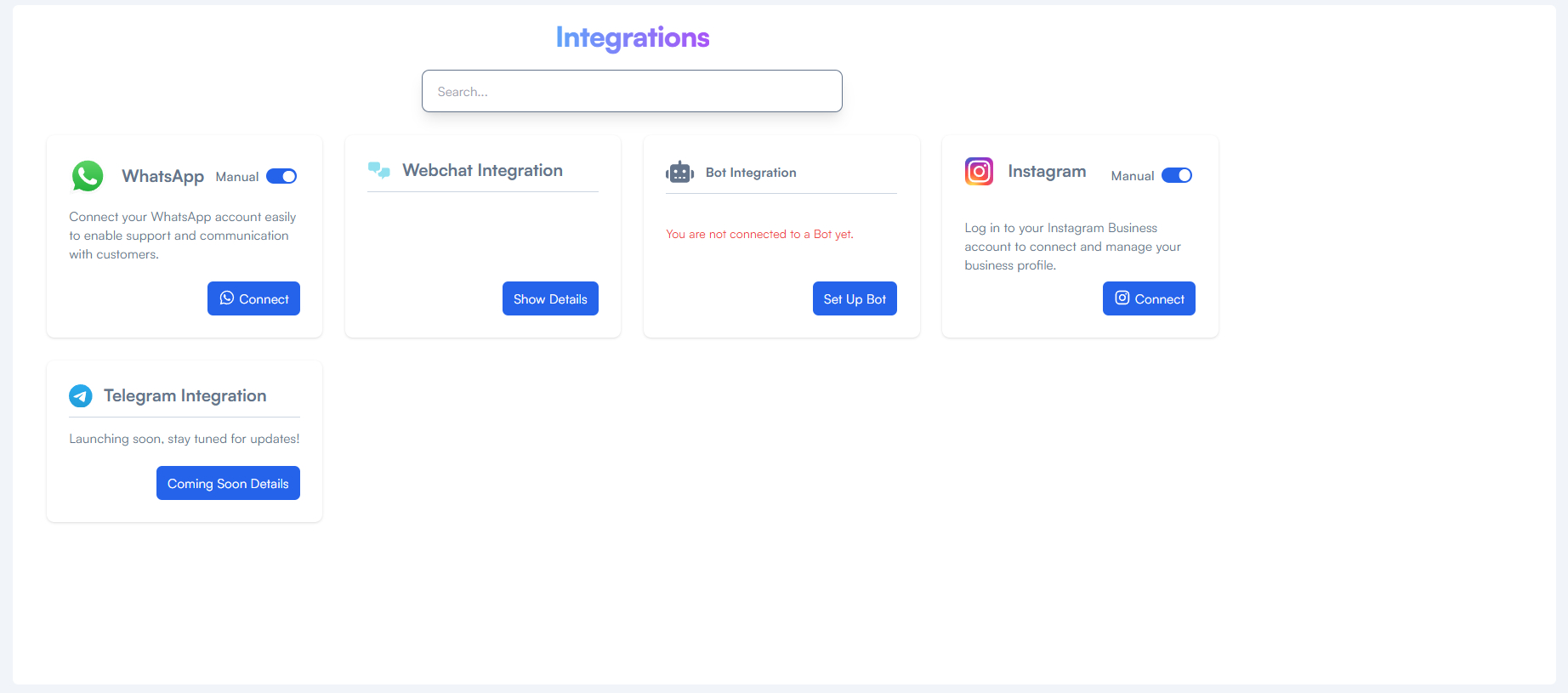](https://docs.versalence.online/uploads/images/gallery/2024-12/e7ETLmB9OKzIErDx-T9uimage.png) From the screen copy the webhook and token and subscribe to Messaging from the META developer port webhook [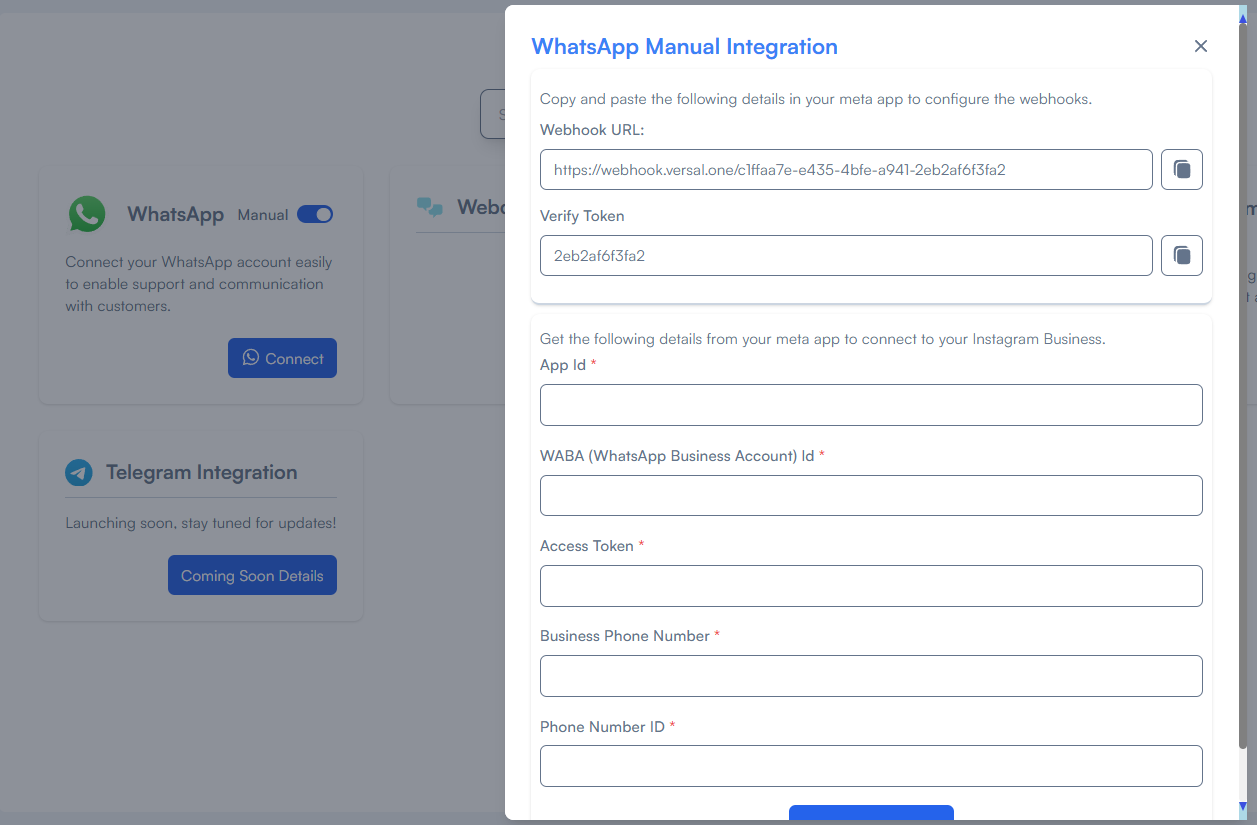](https://docs.versalence.online/uploads/images/gallery/2024-12/wkP4avRc3tplw4ze-eEpimage.png)[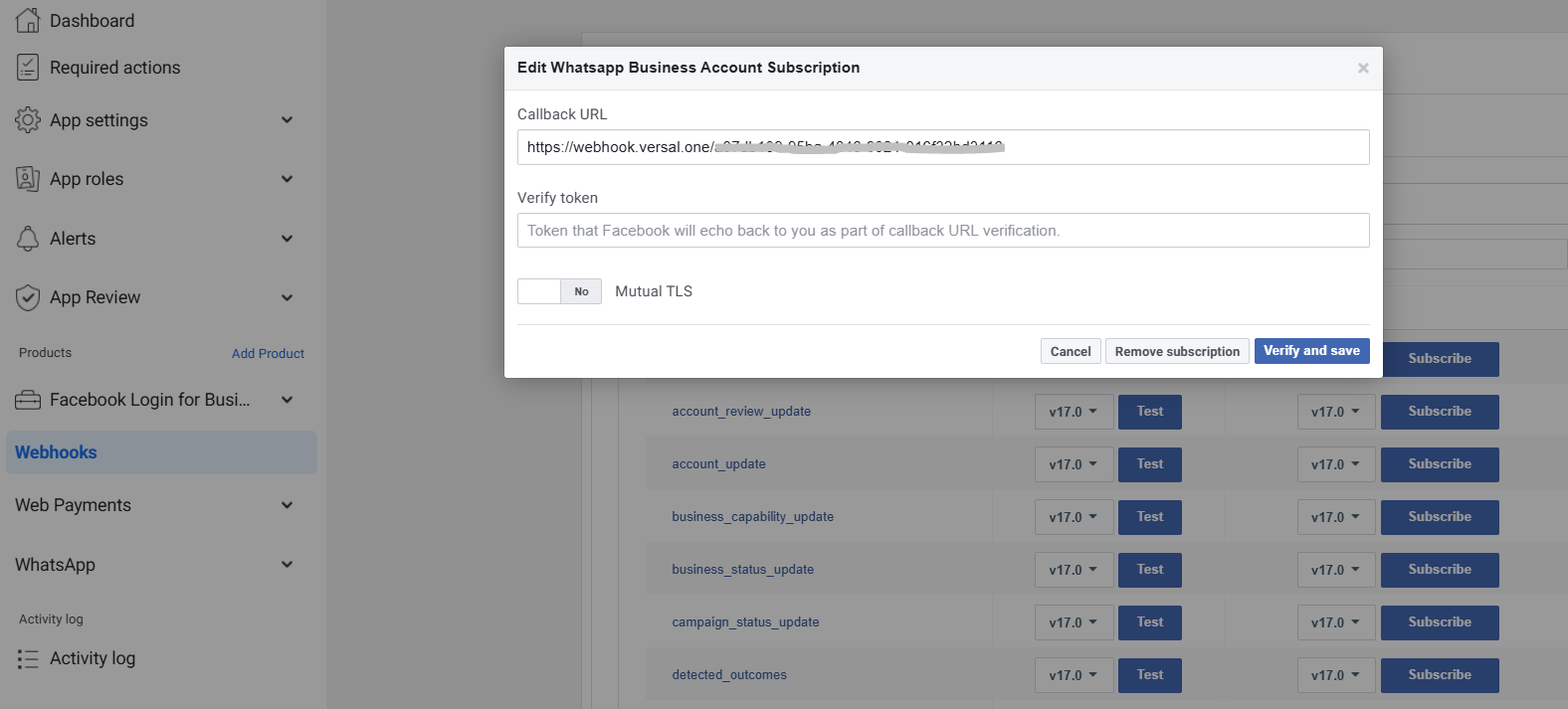](https://docs.versalence.online/uploads/images/gallery/2024-12/Sf3Avin51NnVhlvU-lWzimage.png) Update all the values from your App and the token in vCX configuration - Do keep them secure as they need to be added to Botpress as well. This completes the setup in vCX for WhatsApp. You can now receive and send chats in vCX ### **Automated Embedded Signup** Instead of the manual method, the embedded signup method is the most convenient as it provides a step-by-step workflow to complete the whole process To start, turn off the manual mode and click on Connect to get the embedded sign-up screen. this is a facebook.com link that will guide you through the whole process [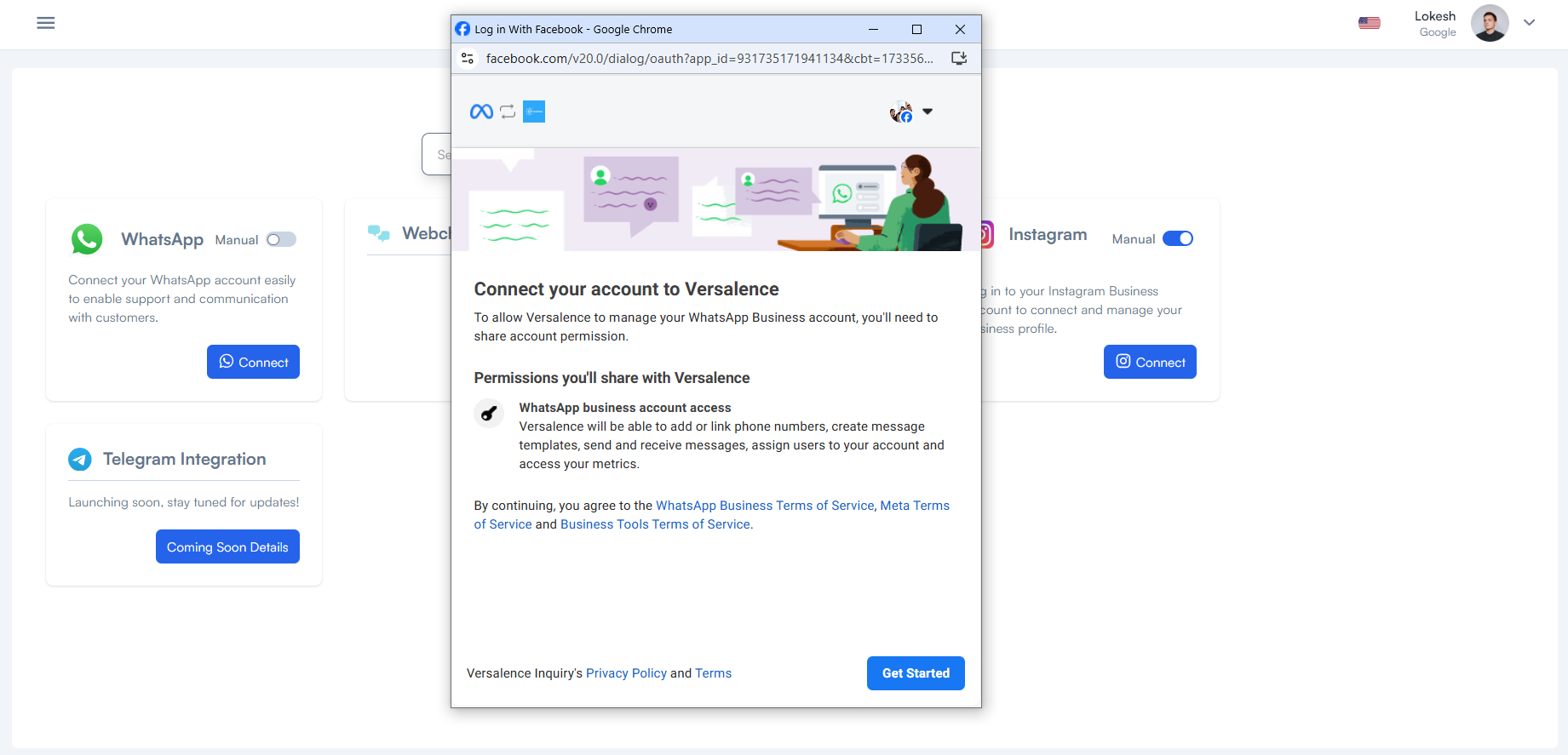](https://docs.versalence.online/uploads/images/gallery/2024-12/q924VdNH2GhQkVqx-Sh8image.png) Once you have completed the process, your WhatsApp API will be generated and the integration will show complete The Connect button will be displayed as "Show Details" [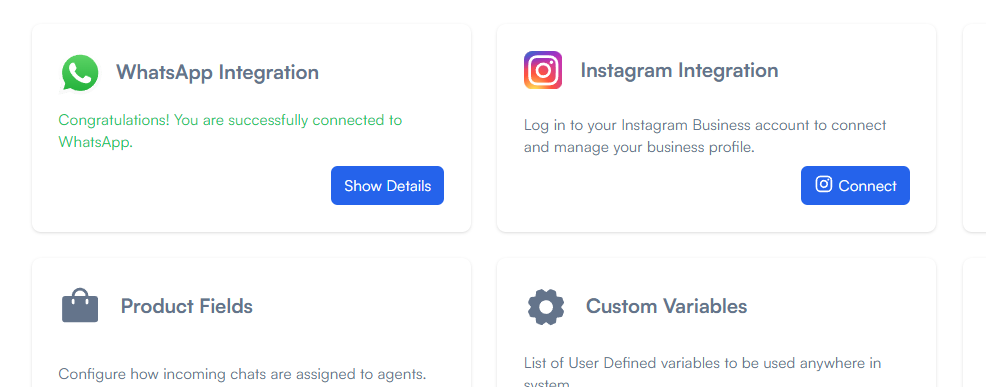](https://docs.versalence.online/uploads/images/gallery/2024-12/1L0tcb8UdLfwdNr2-thjimage.png) clicking on Show Details will reveal your WhatsApp credentials. copy the credentials to Botpress to complete your setup in Botpress [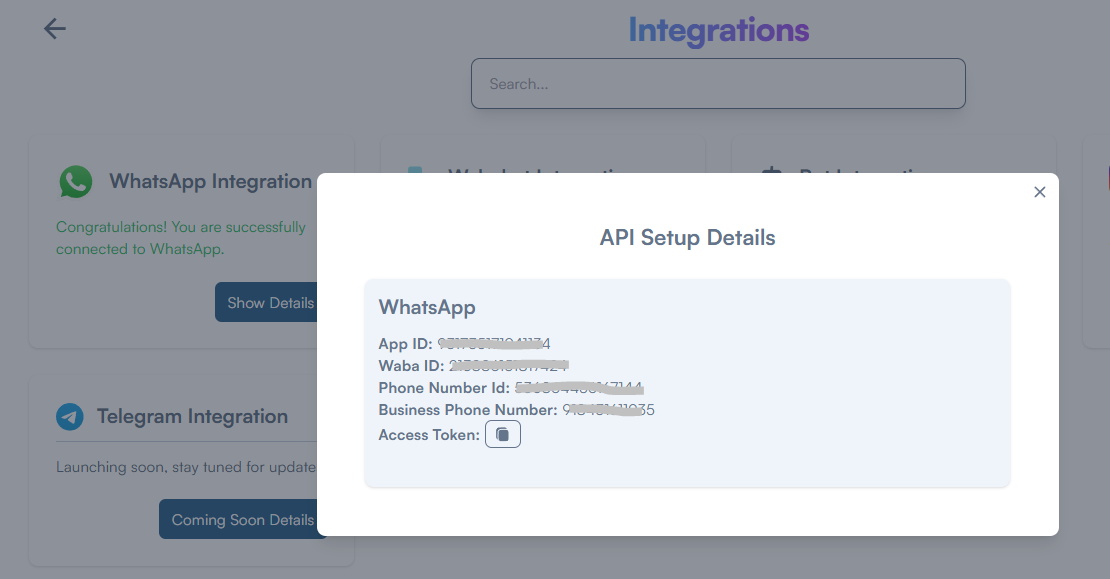](https://docs.versalence.online/uploads/images/gallery/2024-12/BmfWSuXDmhC6MEhx-7hIimage.png) Now your Botpress can send messages via the bot to the user, but it is still not receiving messages from the user nor it is sending the bot response to vCX. To do so, follow the below steps ### **Connecting Botpress to vCX** The vCX Platform and its backend architecture is placed in between META Graph API's and Botpress **[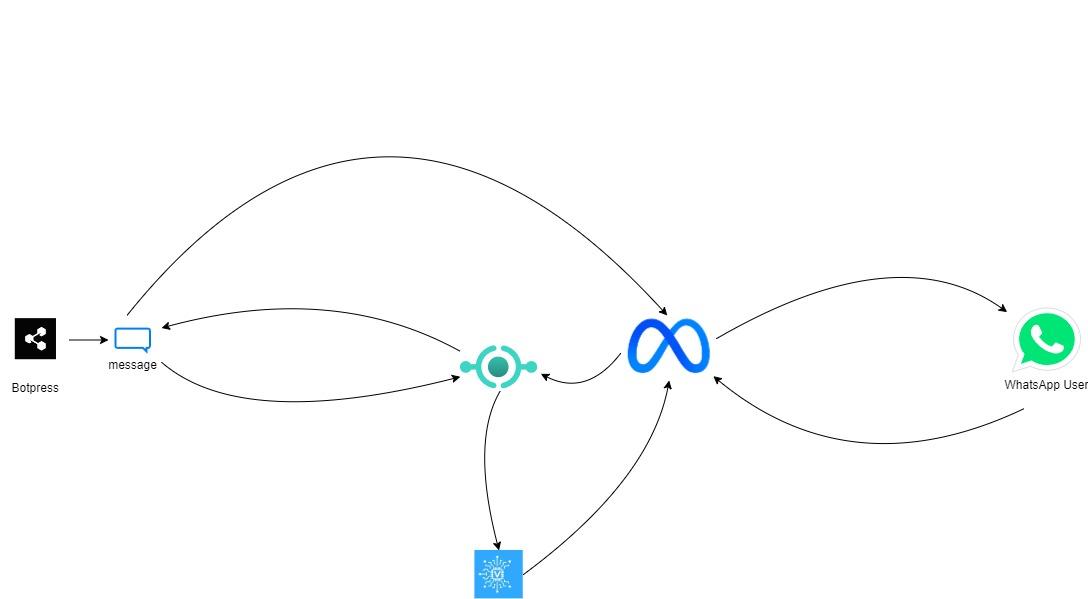](https://docs.versalence.online/uploads/images/gallery/2024-12/LQuB1g3PRgyihtcC-connection.jpg)** Select Bot Integration and select WhatsApp Integration ##### **Step 1: Copy values from vCX WhatsApp Integration to Botpress WhatsApp Integration** [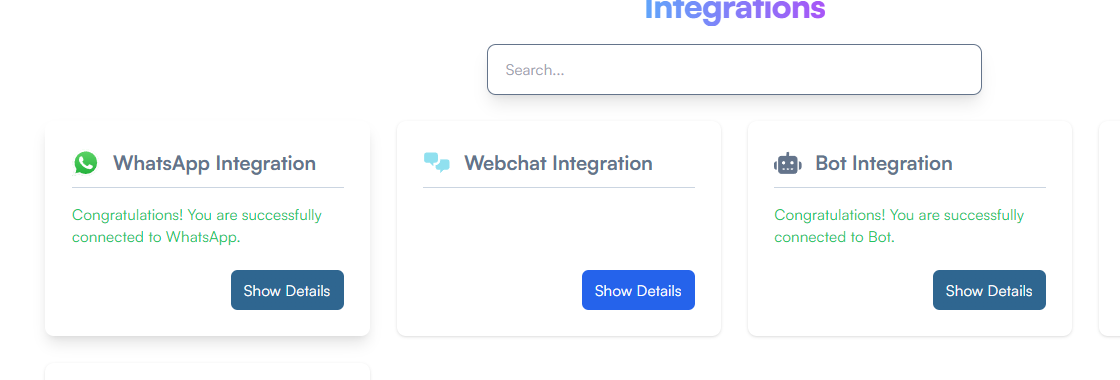](https://docs.versalence.online/uploads/images/gallery/2024-12/8n3Vr3bEMeaTfToB-WtNimage.png) [](https://docs.versalence.online/uploads/images/gallery/2024-12/BmfWSuXDmhC6MEhx-7hIimage.png) From above, copy the Access Token and the Phone Number ID and paste them into the Botpress WhatsApp Integration, under Access Token & Phone Number ID respectively [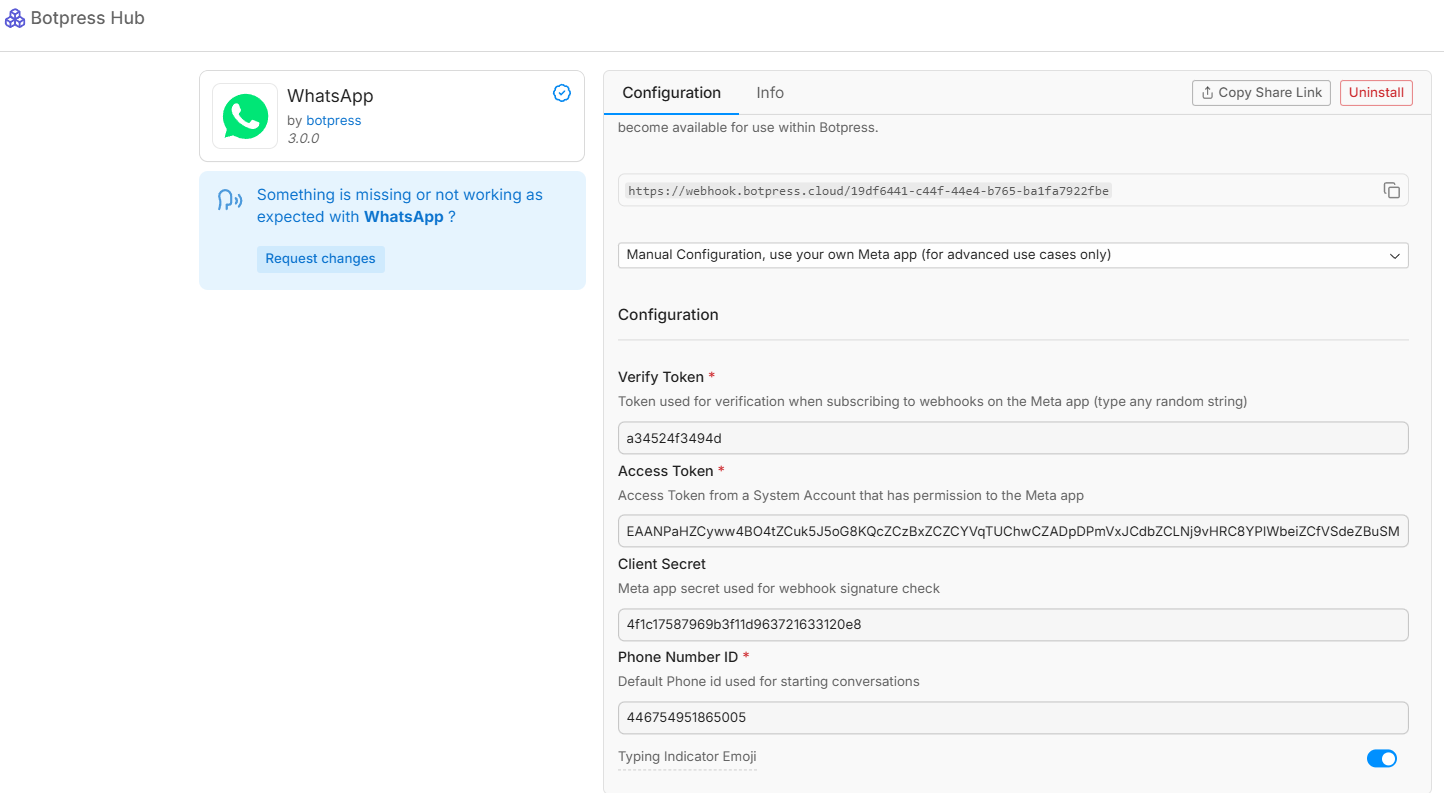](https://docs.versalence.online/uploads/images/gallery/2025-03/4BDtUW3Esx4bNq5h-image.png)Under Verify Token add a random alphanumeric value as a token - this same value will be added to your vCX Integration
Add **4f1c17587969b3f11d963721633120e8** as the Client Secret
Saving the configuration will generate an error in Botpress, hence do not click **Save Configuration**!
##### **[](https://docs.versalence.online/uploads/images/gallery/2024-12/0hnfAvIqGoUlCfet-eANimage.png)** ##### **Step 2: Copy the Webhook and the Verify Token from Botpress to vCX** [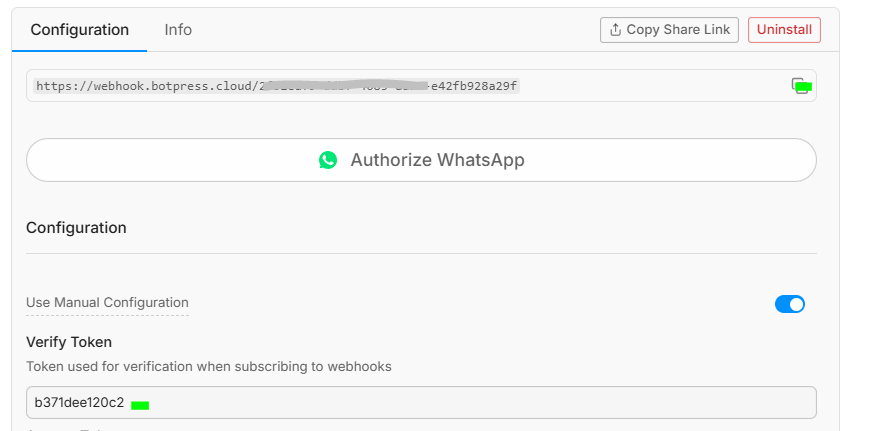](https://docs.versalence.online/uploads/images/gallery/2024-12/AtGdWee0o34hS5NC-6osimage.png) Copy the webhook and the verify token from Botpress. In vCX head to the Integration section and click Show Details for Bot Integration [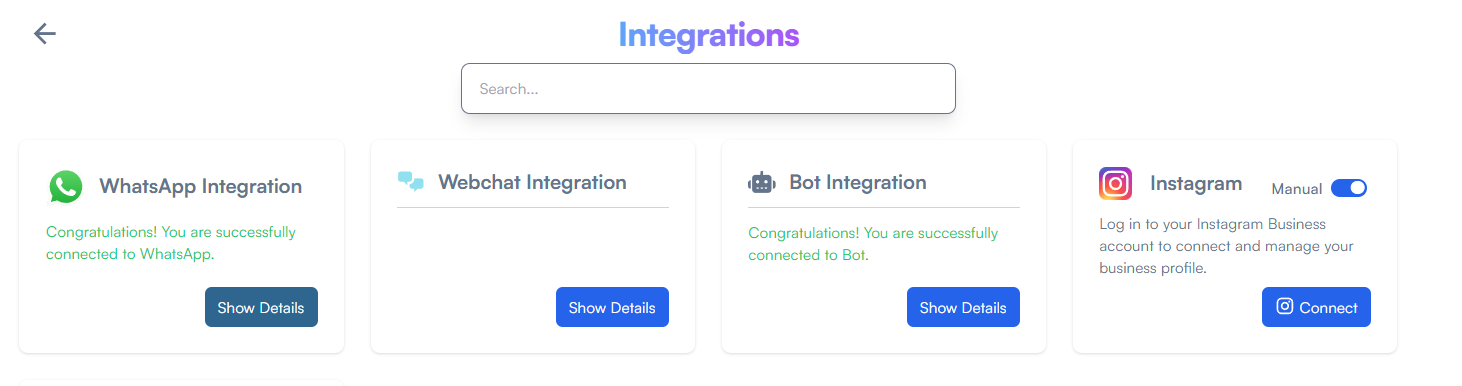](https://docs.versalence.online/uploads/images/gallery/2024-12/AvCitk3XoZ3Ogpoc-46himage.png) Paste the values copied from Botpress as shown [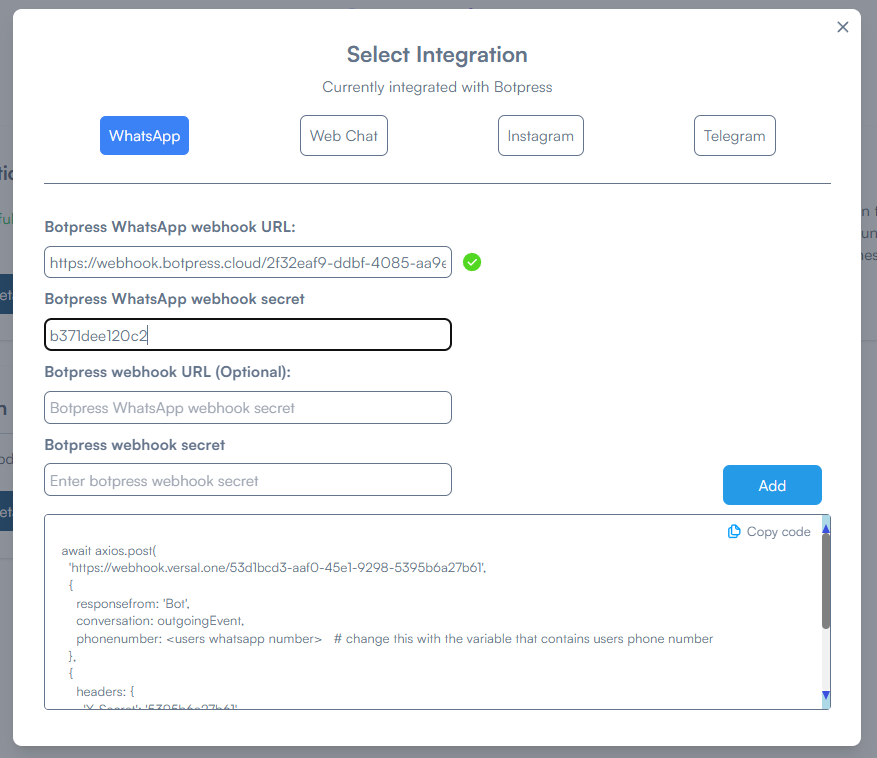](https://docs.versalence.online/uploads/images/gallery/2024-12/QSXlp5VFVwkZ5ArE-QbKimage.png) ##### **Optional** If you have a trigger webhook event in Botpress, you need to add the Webhook URL in the Botpress Webhook URL section. This is optional [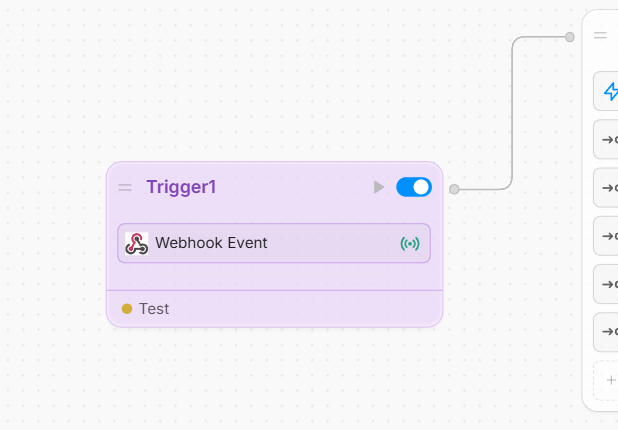](https://docs.versalence.online/uploads/images/gallery/2024-12/J4ASNnB2nZadQOEH-yNrimage.png)[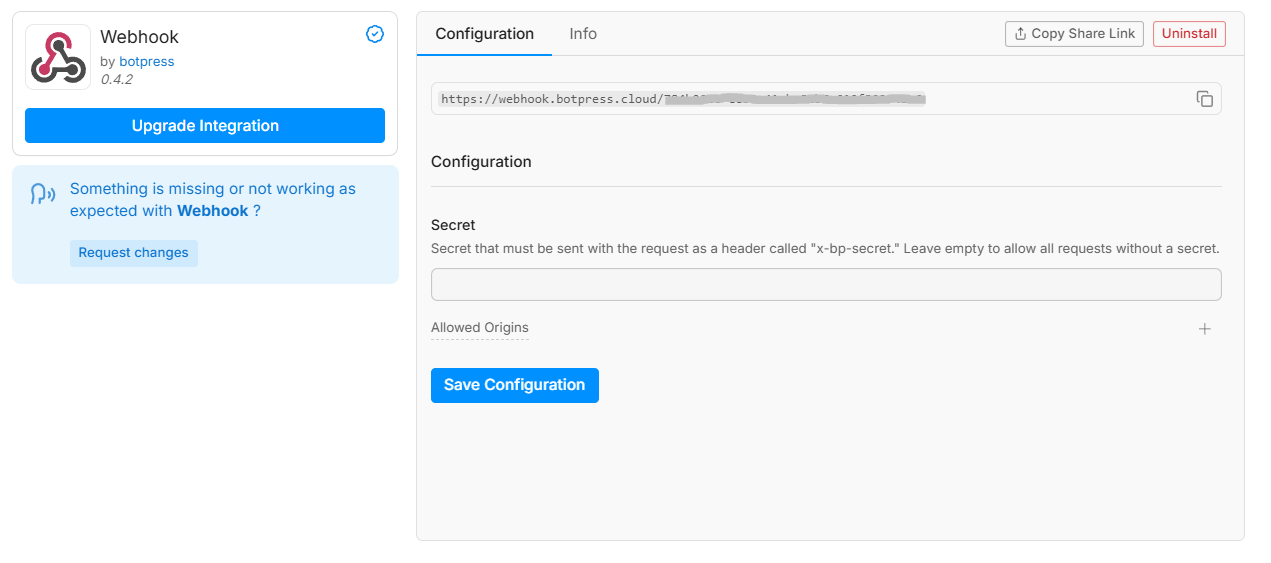](https://docs.versalence.online/uploads/images/gallery/2024-12/QnWdwYMQxMJ943LZ-2S1image.png) ##### **Save Configuration** Click on the **Add** Button, you will receive a confirmation that the settings have been saved Head back to Botpress and click on **Save Configuration.** The configuration will be saved successfully [](https://docs.versalence.online/uploads/images/gallery/2024-12/0hnfAvIqGoUlCfet-eANimage.png) ##### **Step 3: Create a Before Outgoing hook to receive chat messages in vCX** in Botpress under hooks add a new hook of type **Before Outgoing** [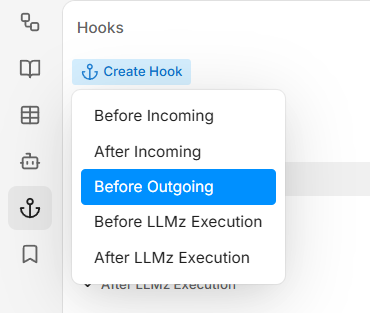](https://docs.versalence.online/uploads/images/gallery/2024-12/Q3rFkCuWSkPe3Faf-fKPimage.png) Give a name as shown [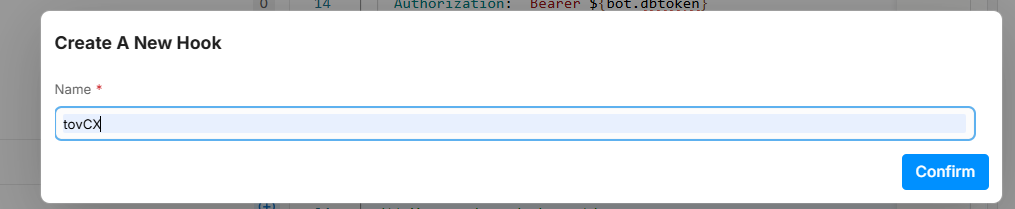](https://docs.versalence.online/uploads/images/gallery/2024-12/NoBvfEF6D5KnPkAO-CSEimage.png) [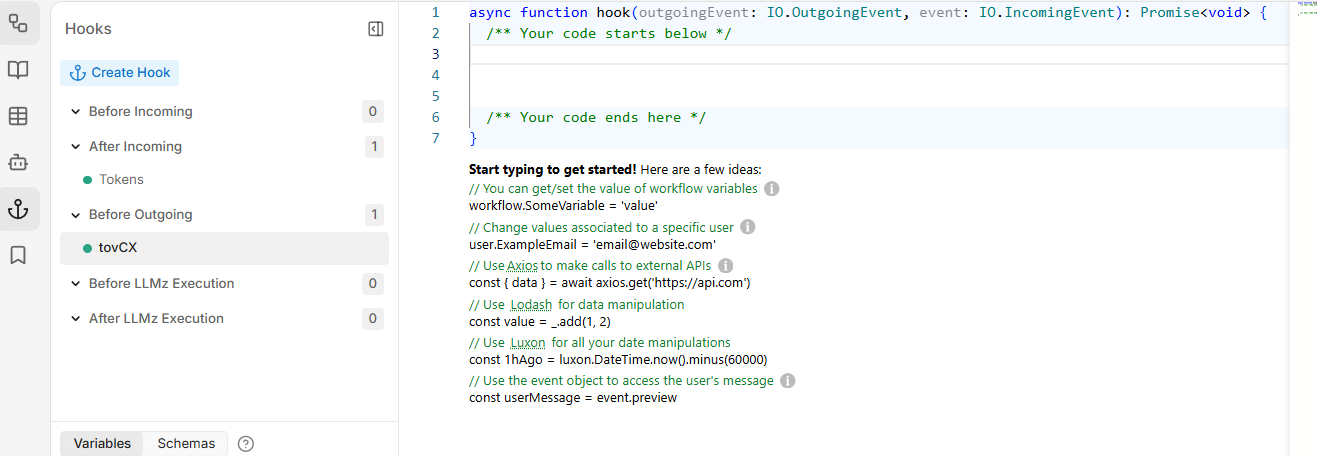](https://docs.versalence.online/uploads/images/gallery/2024-12/rcmqVPMtDNPnvYmK-hnGimage.png) Now head back to vCX and from the Bot Integration section, click **"copy code"** the code in the Integration panel and add it to your Botpress hook as shown below [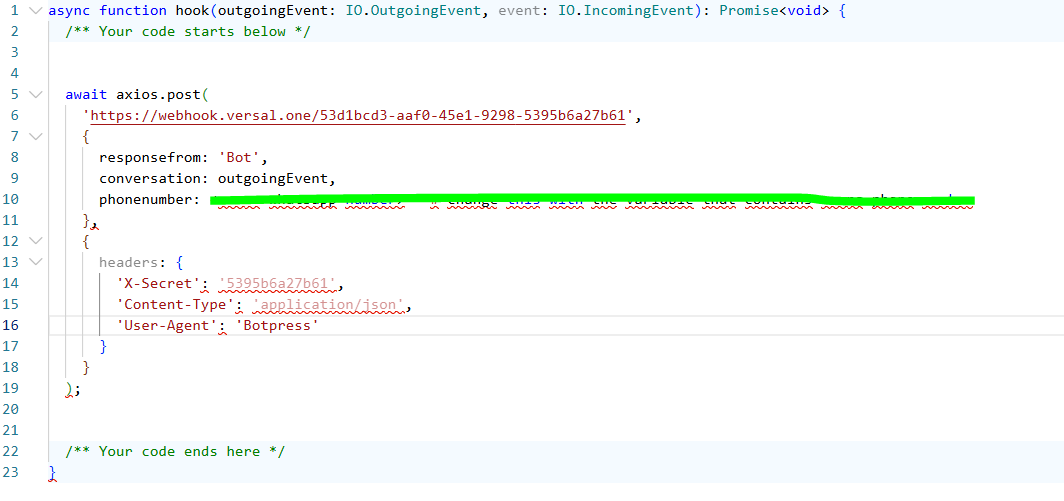](https://docs.versalence.online/uploads/images/gallery/2024-12/vjtZbKMLyFYALAsf-8byimage.png)Delete the highlighted section shown above
Add your variable that holds the WhatsApp phone number of the user, chatting with the bot \[in the below example, we are using user.phonenumber\]If you do not have a variable that stores the phone number of an incoming chat, you should add an execute code right after the Start Node
``` user.phonepumber = event.tags.conversation['whatsapp:userPhone'] ``` [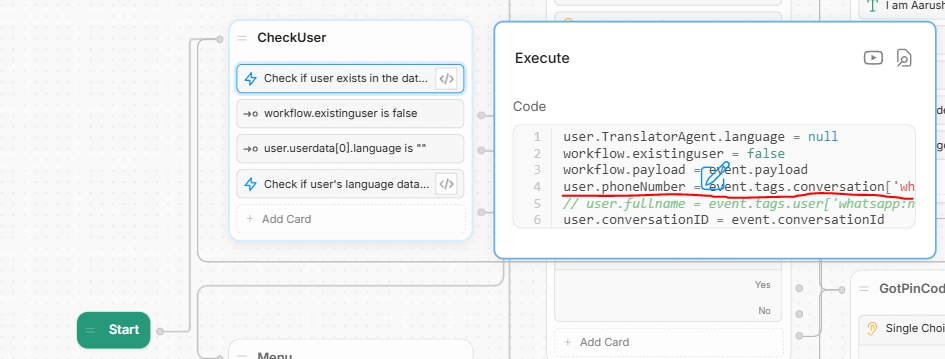](https://docs.versalence.online/uploads/images/gallery/2024-12/vendk5EQ8vXBemXx-bJ8image.png) [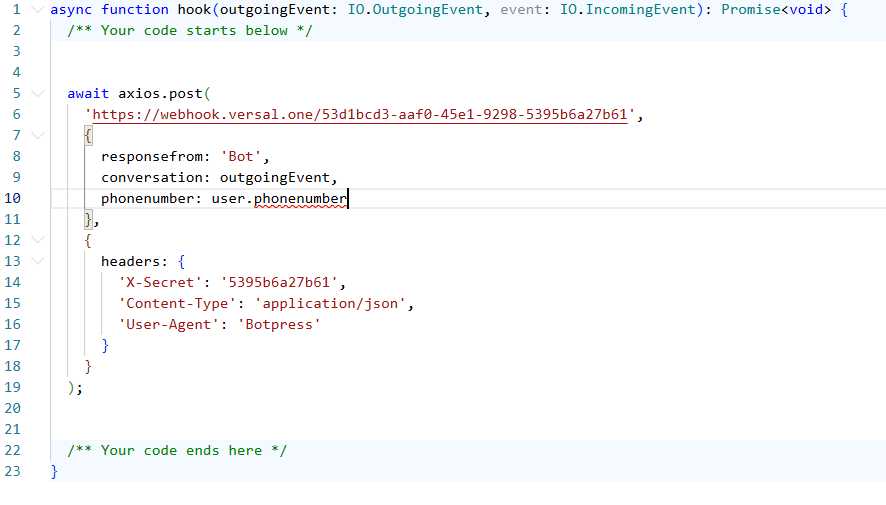](https://docs.versalence.online/uploads/images/gallery/2024-12/Oz50hLRLZDVOyc6t-f7Wimage.png)Important: you need to pass the WhatsApp Phone Number of the user conversing as a parameter, which without vCX platform will not be able to show the user details on the conversations tab. In the above screenshot "user.phonenumber" is a variable that has the phone number of the user
**Publish your bot to make the code changes work!**
Now the setup is complete, to test the HITL feature you can easily toggle between Human and Bot in the conversation section [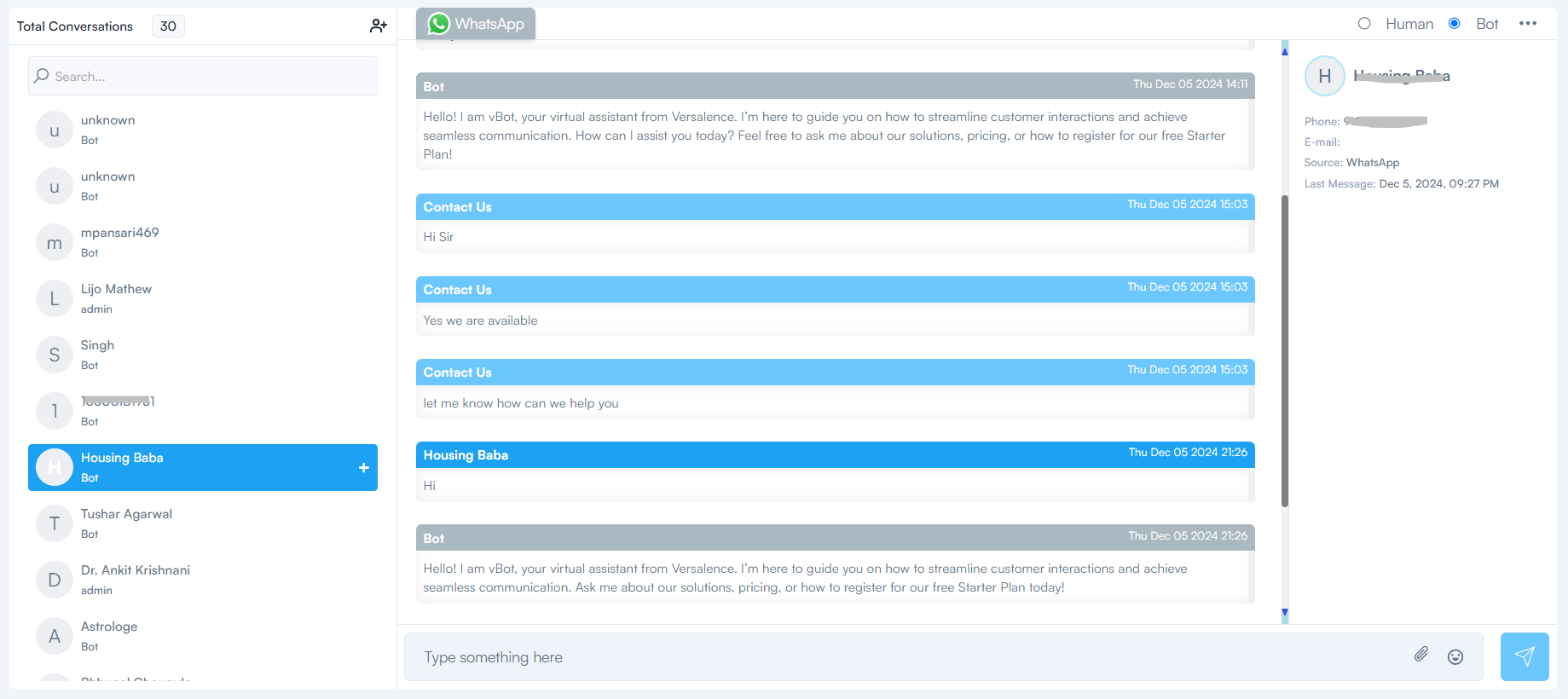](https://docs.versalence.online/uploads/images/gallery/2024-12/7cguW5CWmzuLLkLy-XdVimage.png)